Automatic Protection
The full workflow from open to protected file. Read the feature guide →
Produce Protected Office File is the button that turns your analyzed project into a shippable, protected document. It compiles the selected procedures into the satellite DLLs, generates the delegating VBA wrappers and the bridge, injects them into a copy of your Office file, and verifies the result. Its sibling Test Run (Ctrl+F5) does all of that and then opens the protected copy in Office, the fastest way to check your work.
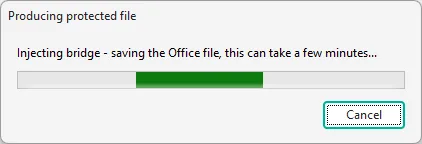
The progress dialog (“Producing protected file”) walks through five phases:
| # | Phase | What you see | What happens |
|---|---|---|---|
| 1 | Validate | “Preparing project…” | Checks the source file exists, the output is writable and distinct from the source, and the Security Code is valid. |
| 2 | Import | “Preparing project…” | Refreshes the module set and the conversion plan. |
| 3 | Build DLL | “Compiling <Module> (n / N)…” | Compiles each module that moves to the DLL; builds the satellite DLLs. |
| 4 | Inject | “Injecting bridge - saving the Office file, this can take a few minutes…” | Writes wrappers and the VBAPLBridge module into a copy of your document. |
| 5 | Verify | “Verifying protected file…” | Re-opens the produced file and checks the injected project. |
On success you get a “Protected File Created” confirmation with an Open in Excel/Word/PowerPoint/Access button. The protected copy is saved next to your source as <name>_protected<ext>, with its DLLs in the bin\ subdirectory.
Test Run, in the Build Project group, is Produce plus one step: when the protected file is ready, it opens immediately in the matching Office application. Use it as your inner development loop: edit, Ctrl+F5, check, repeat.
Failures are reported per phase (Produce failed at <phase>: <message>), so you always know where to look:
See Troubleshooting for the full list of messages and fixes.
Automatic Protection
The full workflow from open to protected file. Read the feature guide →
Protection Review
Decide what moves to the DLL before producing. View Reference →
Distribution
Package the produced file and its DLLs. View Reference →
Run DLL Function...
Test individual compiled functions. View Reference →