VBA Compatibility
VBA Padlock compiles VBA (Visual Basic for Applications) into protected bytecode executed inside your secured DLL.
Use this page as your practical compatibility guide: what compiles into the DLL, what stays in the host document (and why), and what to adapt when needed.
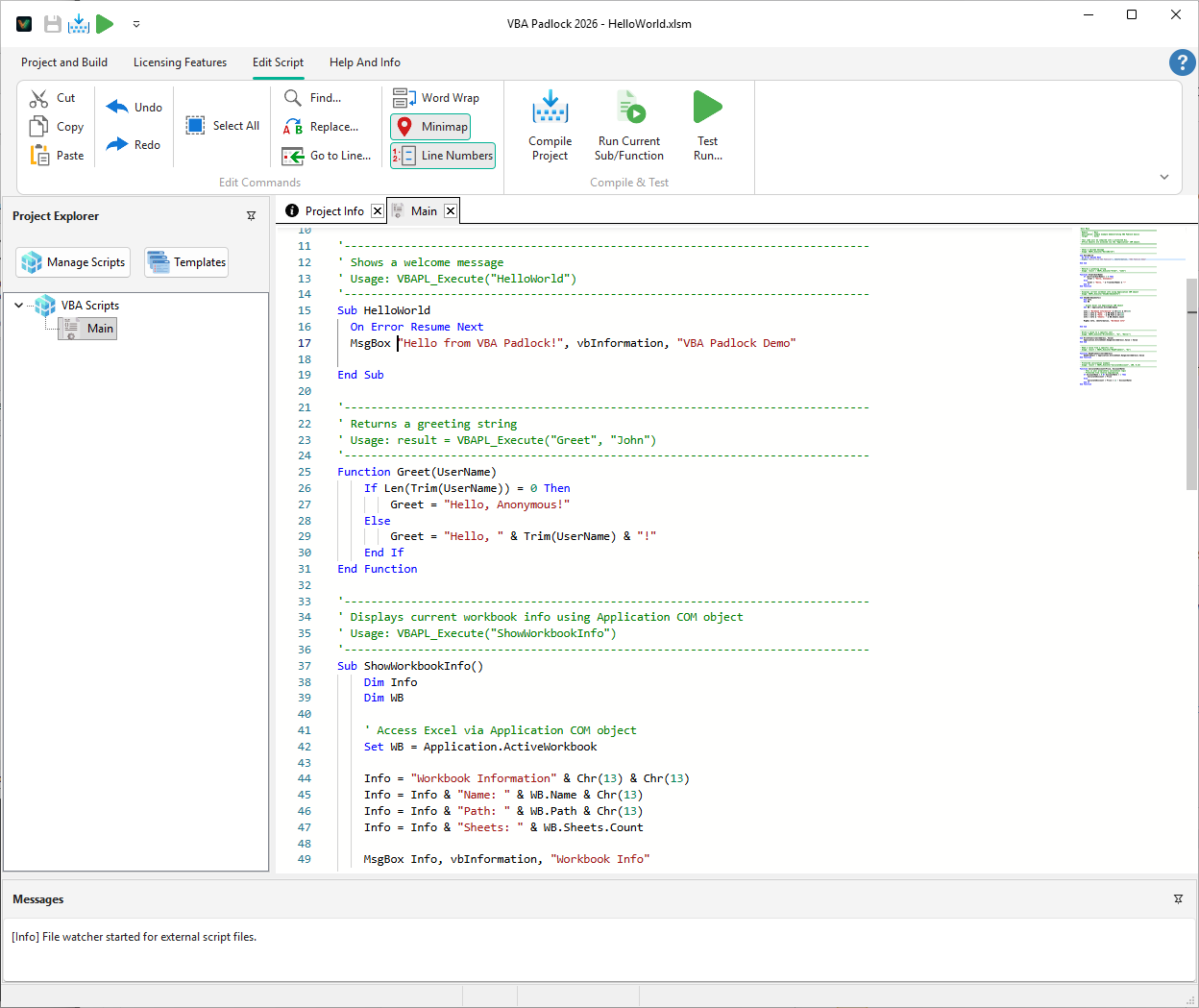
Compatibility at a glance
Section titled “Compatibility at a glance”| Area | Status | Notes |
|---|---|---|
Core VBA language (Dim, loops, procedures, arrays, Enum, Type) | ✅ Fully supported | Includes dynamic and multi-dimensional arrays, recursion |
Class modules (.cls) | ✅ Supported | New, Me, Property Get/Let/Set, Implements, Class_Initialize; see below |
Collection | ✅ Supported | New Collection, Add/Item/Remove/Count, string keys, For Each |
| Built-in VBA functions | ✅ Broad coverage | 80+ builtins; see Script Functions Reference |
Office object model (Application) | ✅ Fully supported | Unqualified host globals are auto-qualified during conversion |
COM automation (CreateObject, GetObject) | ✅ Supported | Scripting.Dictionary, ADODB.*, indexed property writes, etc. |
Conditional compilation (#If / #Const) | ✅ Supported | Evaluated at compile time, line numbers preserved |
Windows API Declare / Declare PtrSafe | ⚠️ Opt-in | Disabled by default; enabled on request. See DLL Calls |
| UserForms | 🏠 Stay in the host | Forms and their code-behind remain in the Office file |
| Event handlers, document modules | 🏠 Stay in the host | Office fires events only on host code; see What stays in the host |
Supported VBA features
Section titled “Supported VBA features”Language Fundamentals
Section titled “Language Fundamentals”| Feature | Supported | Notes |
|---|---|---|
Variables (Dim, Private, Public) | Yes | All standard data types; Static procedure locals too |
Constants (Const) | Yes | |
| Arrays (fixed, dynamic, multi-dimensional) | Yes | Dim a(i, j, k), ReDim (lo To hi), ReDim Preserve, Erase, Option Base 0/1 |
User-defined types (Type) | Yes | Flat scalar fields with true value-copy semantics; fixed-bounds array fields |
Enumerations (Enum) | Yes | Explicit values, auto-increment, hex, negative |
| Class modules | Yes | See Class Modules below |
Option Explicit | Yes | Recommended; also helps more procedures move to the DLL |
Option Compare | Yes | Binary, Text, and Database; honored per module by comparisons, Select Case, Like, and string builtins |
Option Base | Yes | 0 or 1 |
| Conditional compilation | Yes | Nested #If/#ElseIf/#Else/#End If and #Const |
Comments (' and Rem) | Yes | |
Hex literals (&H) | Yes | &HFF, &H8000000F, &HFF& (Long suffix); 5& Long-suffix literals |
$ suffix functions | Yes | Chr$, Left$, Mid$, Format$, etc.; equivalent to non-$ version |
Mid statement | Yes | Mid(s, i, n) = v |
| Unicode identifiers | Yes | Variable and routine names in any script (e.g. CJK) |
| Bracket identifiers | Yes | .[Name], statement-leading [_Enum] |
Debug.Print | Yes | Outputs via OutputDebugString, visible in DebugView |
Class Modules
Section titled “Class Modules”Class modules compile into the DLL, and are removed from the protected document, making them ideal for your most sensitive logic:
| Feature | Supported | Notes |
|---|---|---|
Set x = New C / Dim x As New C | Yes | Eager auto-instantiation at declaration |
Me | Yes | Including dotted Me.<member> read and write |
Public/Private fields and methods, Friend | Yes | |
Class_Initialize | Yes | Dispatched on New |
Property Get/Let/Set | Yes | Scalar and parameterized/indexed, strict Let-vs-Set separation |
| Default member | Yes | Attribute <name>.VB_UserMemId = 0 honored on calls and indexed access |
Implements | Yes | Duck-typed conformance; multiple interfaces; TypeOf x Is IFoo |
TypeOf x Is <Class> | Yes | By class or interface name |
| Typed declarations | Yes | Dim x As <Class> with runtime member resolution |
The bundled 05_ClassModuleDemo example shows a class compiled into the DLL while the workbook keeps working against it.
Data Types
Section titled “Data Types”| Type | Supported | Notes |
|---|---|---|
Boolean | Yes | |
Byte | Yes | |
Integer | Yes | |
Long | Yes | |
LongLong | Yes | 64-bit integer |
LongPtr | Yes | Pointer-sized at runtime: 4 bytes on Win32, 8 on Win64 |
Single | Yes | |
Double | Yes | |
Currency | Yes | |
String | Yes | Variable-length strings |
Date | Yes | Stored as Double internally |
Variant | Yes | Full support |
Object | Yes | COM objects via Application and CreateObject(); script classes |
Control Flow
Section titled “Control Flow”| Feature | Supported |
|---|---|
If...Then...Else...End If | Yes |
Select Case (incl. Case X To Y ranges) | Yes |
For...Next | Yes |
For Each...Next (arrays, collections, COM) | Yes |
Do...Loop (While/Until) | Yes |
While...Wend | Yes |
GoTo | Yes |
GoSub...Return | Yes |
On Error GoTo / Resume / Resume Next | Yes |
On Error Resume Next | Yes |
Exit Sub/Function/For/Do | Yes |
End | Yes |
Procedures
Section titled “Procedures”| Feature | Supported | Notes |
|---|---|---|
Sub | Yes | |
Function | Yes | |
Property Get/Let/Set | Yes | In standard modules and classes; accessor groups move to the DLL together |
Optional parameters | Yes | Including Optional x = True/False keyword defaults |
ParamArray | Yes | Trailing arguments collapse into a zero-based Variant array |
ByRef / ByVal | Yes | ByRef is default |
| Recursive calls | Yes | |
Declare / Declare PtrSafe (DLL calls) | Opt-in | Disabled by default; see DLL Calls |
| Module-level code | Yes | Executed on module initialization |
Operators
Section titled “Operators”All standard VBA operators are supported:
- Arithmetic:
+,-,*,/,\(integer division),Mod,^ - Comparison:
=,<>,<,>,<=,>= - Logical:
And,Or,Not,Xor,Eqv,Imp - String:
&(concatenation),Like(pattern matching, incl. character-list ranges) - Other:
Is,TypeOf...Is, chained indexingx(a)(b)(read access)
Built-in Functions
Section titled “Built-in Functions”VBA Padlock includes a comprehensive set of built-in functions that mirror standard VBA functions. See the Script Functions Reference for the complete list, including:
- String functions (
Mid,Left,Right,InStr,InStrRev,Replace,Split,Join,Trim,LTrim,RTrim,UCase,LCase,StrComp,StrReverse,Chr,ChrW,Asc,AscW,Hex,Space,String,Format,FormatNumber,FormatCurrency,FormatPercent,FormatDateTime) - Math functions (
Abs,Sqr,Sin,Cos,Tan,Atn,Log,Exp,Round,Int,Fix,Sgn,Rnd,Val) - Date functions (
Now,Date,Time,Timer,DateAdd,DateDiff,DatePart,DateSerial,DateValue,TimeSerial,TimeValue,Weekday,WeekdayName,MonthName,Year,Month,Day,Hour,Minute,Second) - Type functions (
TypeName,VarType,IsObject,IsMissing,IsArray,IsDate,IsEmpty,IsNull,IsNumeric,IsError) - Conversion functions (
CInt,CLng,CLngLng,CDbl,CSng,CStr,CBool,CByte,CDate,CCur,CDec,CVErr) - Flow functions (
IIf,Choose,Switch,CallByName) - Utility functions (
Array,DoEvents,RGB,Nz,LBound,UBound,Randomize,InputBox,MsgBox)
Constants libraries and script references
Section titled “Constants libraries and script references”VBA Padlock ships with ready-to-use constant libraries: thousands of Office constants (xl*, wd*, pp*, ac*, mso*, fm*) plus Financial and ErrorHandler helper modules. Select them in the References dialog; the right host constants are pre-selected automatically.
See the Script Libraries & Constants reference for the full catalog, usage instructions, and code examples.
What Stays in the Host Document
Section titled “What Stays in the Host Document”The automatic analysis (the compile gate) keeps some code in the Office file, not because it doesn’t compile, but because it must run there. The Protection Review shows each decision with its reason:
| Kept in the host | Why | What you can do |
|---|---|---|
| UserForm modules | Forms and their code-behind cannot run inside a DLL | Keep UI thin; move logic into standard-module procedures |
Document modules (ThisWorkbook, Sheet1, ThisDocument, …) | Document code belongs to the document | Same: delegate to standard modules |
| Event handlers | Office fires events only on host-module code | One-line handler calls a protected Sub |
| Procedures sharing module-level variables | Moving part of the group would split state between host and DLL | Restructure the shared state, or accept the verdict |
Dependency closures (depends on <proc>) | A procedure calling kept code is demoted with it | Fix the root cause; the closure follows |
Unqualified host globals in modules without Option Explicit | The DLL cannot resolve the bare name | Add Option Explicit or qualify with Application. |
These verdicts are behavior, not errors: a partially-protected module still works perfectly; the kept procedures simply remain readable VBA.
Office Object Model Access
Section titled “Office Object Model Access”Compiled scripts have full access to the host Office application through the Application object. You can manipulate worksheets, documents, presentations, and databases exactly as you would in regular VBA.
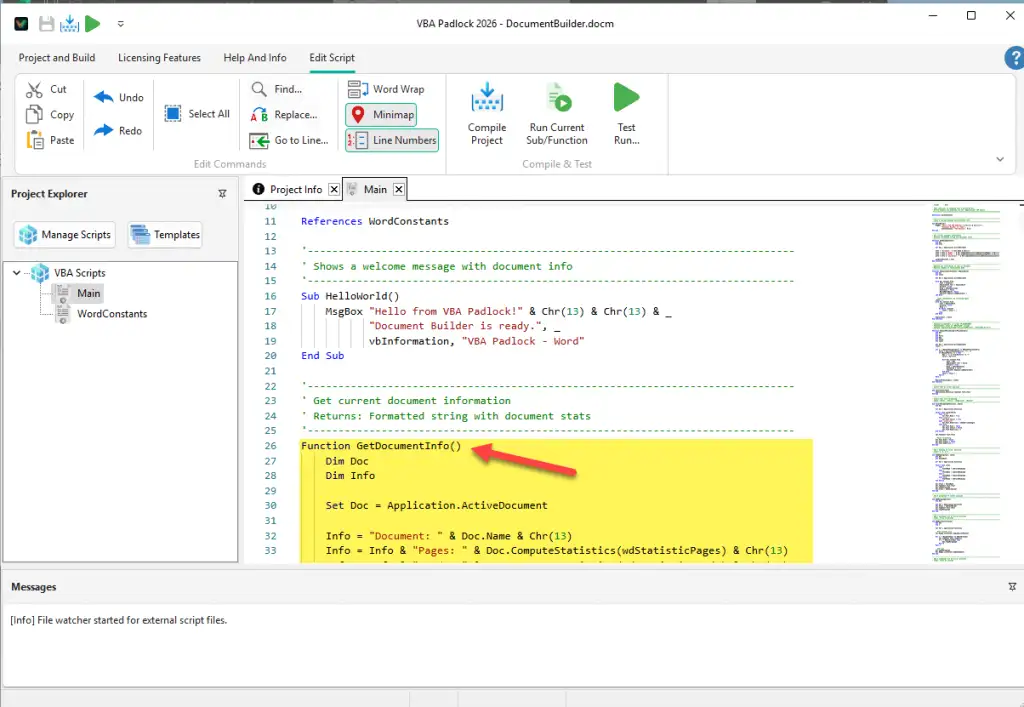
Examples in Protected Code
Section titled “Examples in Protected Code”' PROTECTED CODE (compiled into the DLL)Sub WriteToCell(CellAddress, Value) Application.ActiveSheet.Range(CellAddress).Value = ValueEnd Sub
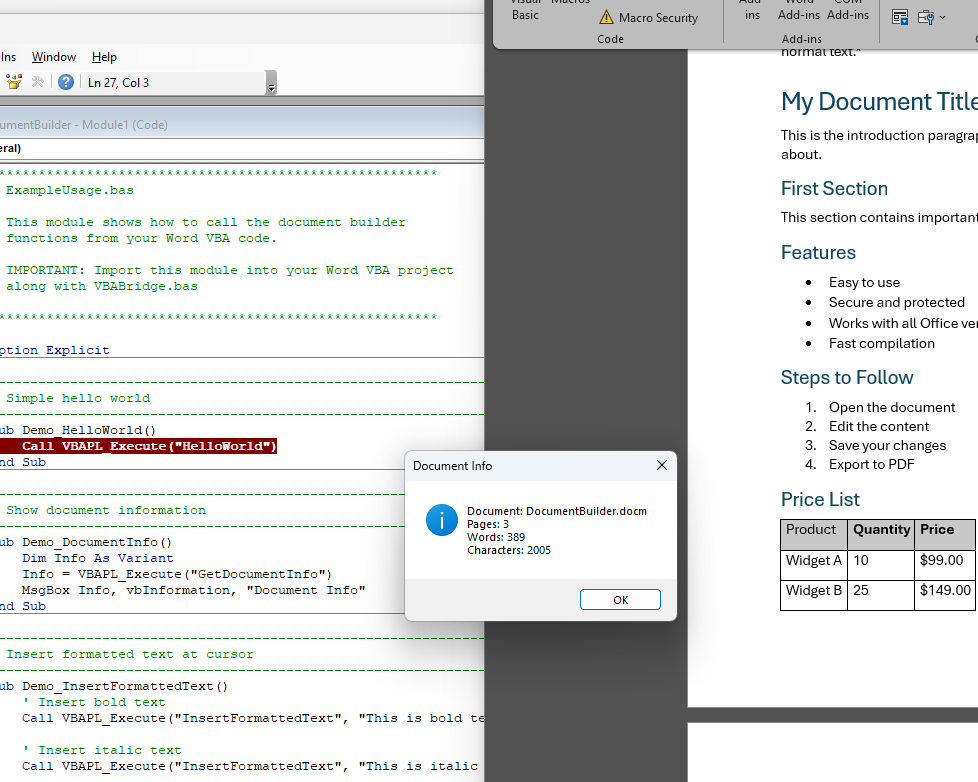
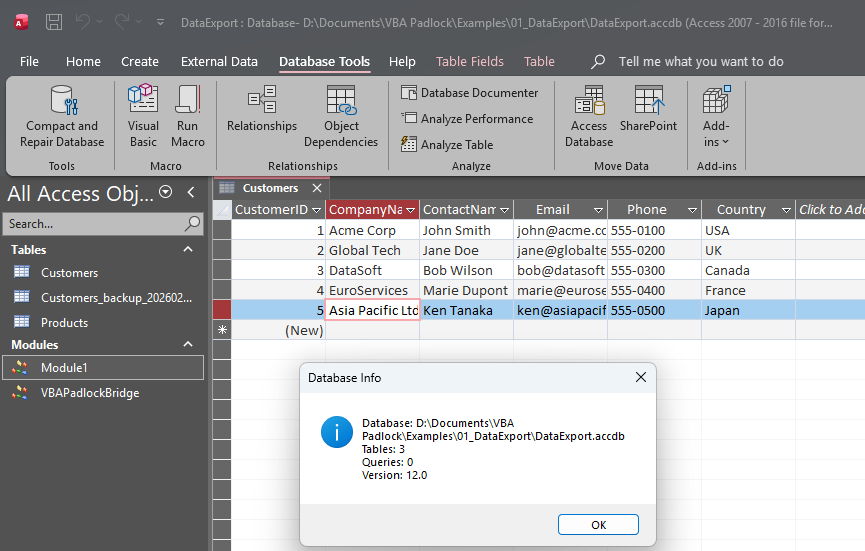
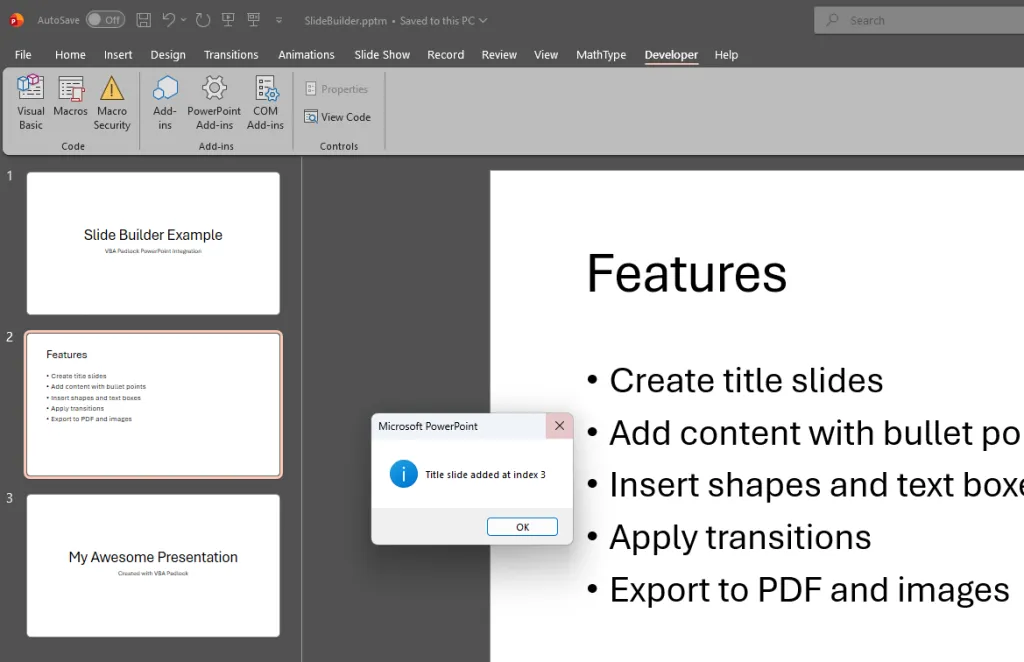
Function ReadFromCell(CellAddress) ReadFromCell = Application.ActiveSheet.Range(CellAddress).ValueEnd Function' PROTECTED CODE (compiled into the DLL)Function GetDocumentInfo() Dim Doc Set Doc = Application.ActiveDocument GetDocumentInfo = "Document: " & Doc.Name & Chr(13) & _ "Pages: " & Doc.ComputeStatistics(wdStatisticPages)End Function' PROTECTED CODE (compiled into the DLL)Function GetDatabaseInfo() Dim DB Set DB = Application.CurrentDb GetDatabaseInfo = "Database: " & DB.Name & Chr(13) & _ "Queries: " & DB.QueryDefs.CountEnd Function' PROTECTED CODE (compiled into the DLL)Function AddTitleSlide(Title, Subtitle) Dim Pres, Sld, SlideIndex Set Pres = Application.ActivePresentation SlideIndex = Pres.Slides.Count + 1 Set Sld = Pres.Slides.Add(SlideIndex, ppLayoutTitle) Sld.Shapes.Title.TextFrame.TextRange.Text = Title Sld.Shapes.Placeholders(2).TextFrame.TextRange.Text = Subtitle AddTitleSlide = SlideIndexEnd FunctionSymbolic constants (wdStatisticPages, ppLayoutTitle, xlUp, …) resolve when the matching constants library is ticked in References, which is the default for your host.
The Caller Side (Office VBE)
Section titled “The Caller Side (Office VBE)”The wrappers generated by Produce call your compiled procedures for you: same names, same signatures. If you write callers by hand (advanced scenarios), the generic entry point is VBAPL_Execute:
' CALLER CODE (inside the Office document)Sub RunMyProtectedCode() Call VBAPL_Execute("WriteToCell", "A1", "Hello!")End Sub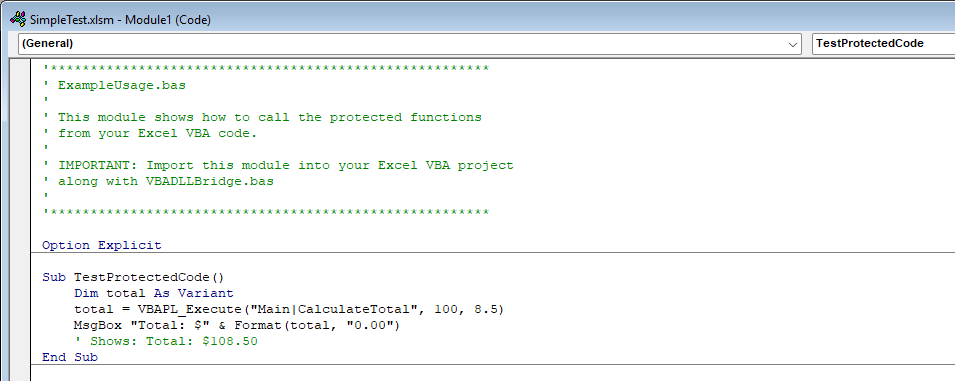
COM Object Creation
Section titled “COM Object Creation”CreateObject() and GetObject() are supported in compiled scripts. You can create and use COM objects such as Scripting.Dictionary, ADODB.Connection, ADODB.Stream, etc., including indexed property writes (obj("key") = value).
Function RemoveDuplicates(ColumnIndex)    Dim Dict    Set Dict = CreateObject("Scripting.Dictionary")
    Dim WS, LastRow, Row, Key    Set WS = Application.ActiveSheet    LastRow = WS.Cells(WS.Rows.Count, ColumnIndex).End(xlUp).Row
    For Row = 2 To LastRow        Key = CStr(WS.Cells(Row, ColumnIndex).Value)        If Not Dict.Exists(Key) Then            Dict.Add Key, Row        End If    Next Row
    RemoveDuplicates = Dict.CountEnd Function
Limitations
Section titled “Limitations”DLL Calls (Declare)
Section titled “DLL Calls (Declare)”VBA Padlock supports standard VBA Declare statements, including the modern Declare PtrSafe form with LongLong and LongPtr, to call functions in external DLLs (Windows APIs and third-party DLLs). The syntax is identical to regular VBA:
Declare PtrSafe Function GetTickCount Lib "kernel32" () As LongDeclare PtrSafe Function GetComputerNameW Lib "kernel32" (ByVal lpBuffer As String, ByRef nSize As Long) As LongDeclare PtrSafe Sub Sleep Lib "kernel32" (ByVal dwMilliseconds As Long)LongPtr is pointer-sized at runtime (4 bytes on 32-bit Office, 8 bytes on 64-bit), and As Any is accepted as a fallback parameter type.
UserForms
Section titled “UserForms”VBA UserForms are not compiled; they stay in the Office file with their code-behind (shown as VBA (form) in the review). For the built-in dialogs your protected app needs (activation, trial nag, EULA), VBA Padlock provides its own, configured through the Licensing Features tab.
ParamArray scope
Section titled “ParamArray scope”ParamArray is currently resolved at same-module call sites; a ParamArray procedure called from a different module may be kept in VBA by the gate.
Chained indexing
Section titled “Chained indexing”x(a)(b) chains (nested default-member/array indexing) are read-only; writing through a chained index is not supported.
Parameters for VBAPL_Execute
Section titled “Parameters for VBAPL_Execute”VBAPL_Execute supports any number of parameters. Calls with 0 to 4 arguments use optimized dedicated DLL exports, while calls with 5 or more arguments are automatically packed into an array and routed through ExecuteVBAFunctionN. This is handled transparently.
' Call with few parametersresult = VBAPL_Execute("Main|CalculatePrice", quantity, unitPrice)
' Call with many parameters (no limit)result = VBAPL_Execute("Reports|Generate", title, startDate, endDate, format, outputPath, includeCharts)
When omitting the module name (e.g., VBAPL_Execute("MyFunction", arg1)), the function is searched in the default Main script. To call a function in another module, use the "ModuleName|FunctionName" syntax.
Differences from Standard VBA
Section titled “Differences from Standard VBA”String Handling
Section titled “String Handling”Compiled scripts use Unicode (UTF-16) strings internally, consistent with modern VBA. String comparisons default to binary comparison unless the module specifies Option Compare Text (or Database in Access).
Error Handling
Section titled “Error Handling”On Error GoTo, On Error Resume Next, Resume, and Resume Next work as expected. The Err object provides Number and Description properties. However, Err.Raise with custom error numbers should use values above 512 to avoid conflicts with built-in errors.
Module Initialization
Section titled “Module Initialization”Module-level code (code outside any Sub or Function) is executed when the module is first loaded. This happens on the first call to any function in that module.
Numeric Precision
Section titled “Numeric Precision”Integeris 16-bit signed (−32,768 to 32,767)Longis 32-bit signed (−2,147,483,648 to 2,147,483,647)LongLongis 64-bit signed;LongPtris pointer-sizedDoublefollows IEEE 754 double-precision- Arithmetic rounding uses the
Roundfunction (arithmetic rounding, not banker’s rounding) - Hexadecimal literals use the
&Hprefix:&HFF(255),&H8000000F(−2,147,483,633 as Long). An optional&suffix forcesLongtype:&HFF&
Supported Office Applications
Section titled “Supported Office Applications”VBA Padlock can protect projects for these Office applications:
| Application | File Types | Notes |
|---|---|---|
| Excel | .xlsm, .xlsb, .xla, .xlam | Most common use case |
| Word | .docm, .dotm | Documents and templates |
| Access | .accdb, .accde | Databases (analyzed copy-first) |
| PowerPoint | .pptm, .ppam | Presentations and add-ins |
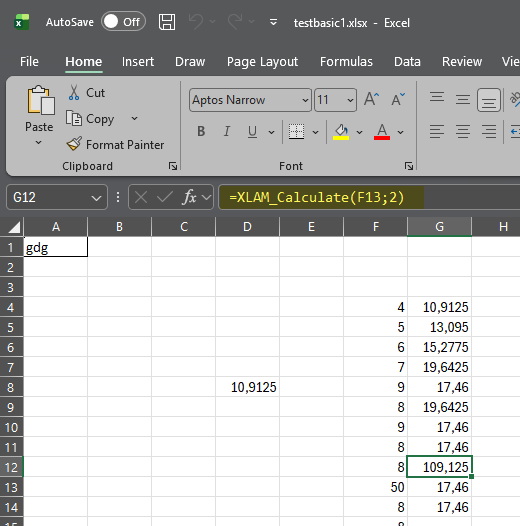
All Office versions from Office 2016 through Office 2024 and Microsoft 365 desktop apps are supported and tested, in both 32-bit and 64-bit editions. The automatic workflow (analyze → review → produce) works end to end with all four hosts.
Best Practices
Section titled “Best Practices”-
Let the analysis guide you. Open your file, read the Protection Review, and fix the reasons for kept procedures rather than restructuring blindly.
-
Keep event handlers thin. A one-line handler calling a standard-module
Subprotects the logic while keeping the event wiring in the host. -
Use
Option Explicit. It catches typos at compile time and removes the unresolved-host-global reason for keeping procedures in VBA. -
Use symbolic Office constants. Tick the right libraries in References and write
xlUp, not-4162. -
Test with Test Run. Ctrl+F5 produces the protected file and opens it in Office, the closest thing to what your users will run. For unit-style checks of individual routines, use Run DLL Function.
-
Validate frequently with Syntax Check. It reports move/keep verdicts in seconds, without building.
See Also
Section titled “See Also”- Automatic Protection Workflow: How analysis and conversion work
- Script Functions Reference: All built-in functions available in compiled scripts
- Script Libraries & Constants: Office constants and utility modules for compiled scripts
- VBA Bridge API Reference: Calling the DLL from Office VBA
- Project Format Reference: Project folder structure
- Code Editor: Writing and editing compiled scripts in VBA Padlock Studio