Skip to content

Protect an Access Database

You have built a Microsoft Access database packed with VBA logic — maybe it handles complex data exports, manages relational integrity, or runs proprietary SQL utilities — and you need to distribute it without exposing your source code.

In this tutorial, you’ll walk through the complete workflow: compiling your Access logic into a protected DLL, wiring it up to Access through the auto-generated VBA Bridge, and optionally adding activation keys with hardware locking.

Time needed: 20-25 minutes


Imagine you sell a “Data Export Toolkit”: users open your database, click a button, and the macro runs a series of SQL queries, formats the data, and exports it to CSV or JSON using optimized routines.

VBA Padlock allows you to commercialize this tool while keeping your proprietary SQL logic and export algorithms completely hidden inside a native DLL.


Start by opening your Access file in VBA Padlock to create a project that will hold your compiled code and licensing settings.

  1. Launch VBA Padlock from the Start menu.

  2. Click “Open Office File” in the ribbon and select your .accdb file (for example, DataExport.accdb).

    VBA Padlock Welcome Screen

  3. Set Project Information

    In the Project Info tab:

    • Application Title: Give your tool a name (e.g., Data Export Utilities).
    • Security Code: Click Generate to create the unique cryptographic link between your database and the DLL.

    Project Information Settings


Switch to the Code Editor. This is where you write the VBA logic you want to hide. Below is an excerpt based on the real DataExport example included with VBA Padlock.

VBA Padlock Code Editor

' PROTECTED CODE (Inside VBA Padlock)
' These functions access Access's database engine via the "Application.CurrentDb" object.
Sub HelloWorld()
MsgBox "Hello from VBA Padlock!" & Chr(13) & Chr(13) & _
"Access DataExport is ready.", _
vbInformation, "VBA Padlock - Access"
End Sub
' Get current database information
Function GetDatabaseInfo()
Dim DB
Dim Info
Dim TableCount
Dim QueryCount
Set DB = Application.CurrentDb
TableCount = 0
QueryCount = DB.QueryDefs.Count
' Count user tables (exclude system tables)
Dim TDef
For Each TDef In DB.TableDefs
If Left(TDef.Name, 4) <> "MSys" And Left(TDef.Name, 1) <> "~" Then
TableCount = TableCount + 1
End If
Next TDef
Info = "Database: " & DB.Name & Chr(13)
Info = Info & "Tables: " & TableCount & Chr(13)
Info = Info & "Queries: " & QueryCount & Chr(13)
Info = Info & "Version: " & DB.Version
GetDatabaseInfo = Info
End Function
' Return a comma-separated list of user tables
Function GetTableList()
Dim DB, TDef, Result
Set DB = Application.CurrentDb
Result = ""
For Each TDef In DB.TableDefs
' Filter out system and temp tables
If Left(TDef.Name, 4) <> "MSys" And Left(TDef.Name, 1) <> "~" Then
If Len(Result) > 0 Then Result = Result & ","
Result = Result & TDef.Name
End If
Next TDef
GetTableList = Result
End Function
' Export a table to CSV
Function ExportToCSV(Table, Path, Delimiter)
Dim DB, RS, Stream, i, Line, Value
On Error Resume Next
Set DB = Application.CurrentDb
Set RS = DB.OpenRecordset(Table)
If Err.Number <> 0 Then ExportToCSV = False: Exit Function
Set Stream = CreateObject("ADODB.Stream")
Stream.Type = 2 : Stream.Charset = "UTF-8" : Stream.Open
' Headers and Data rows logic...
' (Simplified for the tutorial, full implementation in DataExport example)
Stream.WriteText "Header1" & Delimiter & "Header2", 1
Stream.WriteText "Value1" & Delimiter & "Value2", 1
Stream.SaveToFile Path, 2
Stream.Close: RS.Close
ExportToCSV = (Err.Number = 0)
End Function
Function BackupTable(TableName, BackupSuffix)
Dim BackupName
Dim SQL
On Error Resume Next
BackupName = TableName & BackupSuffix & "_" & Format(Now, "yyyymmdd_hhnnss")
' Delete if exists
Application.DoCmd.DeleteObject 0, BackupName ' acTable = 0
Err.Clear
' Create backup using SELECT INTO
SQL = "SELECT * INTO [" & BackupName & "] FROM [" & TableName & "]"
Application.CurrentDb.Execute SQL
BackupTable = (Err.Number = 0)
On Error GoTo 0
End Function
Function ExportAllTablesToCSV(FolderPath, Delimiter)
Dim DB
Dim TDef
Dim Count
Dim FilePath
Set DB = Application.CurrentDb
Count = 0
If Right(FolderPath, 1) <> "\" Then
FolderPath = FolderPath & "\"
End If
For Each TDef In DB.TableDefs
If Left(TDef.Name, 4) <> "MSys" And Left(TDef.Name, 1) <> "~" Then
FilePath = FolderPath & TDef.Name & ".csv"
If ExportToCSV(TDef.Name, FilePath, Delimiter) Then
Count = Count + 1
End If
End If
Next TDef
ExportAllTablesToCSV = Count
End Function
Function ExecuteScalar(SQL)
Dim DB
Dim RS
On Error Resume Next
Set DB = Application.CurrentDb
Set RS = DB.OpenRecordset(SQL)
If Err.Number = 0 And Not RS.EOF Then
ExecuteScalar = RS.Fields(0).Value
Else
ExecuteScalar = Null
End If
If Not RS Is Nothing Then RS.Close
On Error GoTo 0
End Function
Function ExecuteSQL(SQL)
Dim DB
On Error Resume Next
Set DB = Application.CurrentDb
DB.Execute SQL, 128 ' dbFailOnError = 128
If Err.Number = 0 Then
ExecuteSQL = DB.RecordsAffected
Else
ExecuteSQL = -1
End If
On Error GoTo 0
End Function

  1. Click Publish Final DLL in the ribbon, then click Build Final DLL Files on the page that opens.

  2. VBA Padlock compiles your scripts and creates three DLL files in a bin subfolder next to your database:

    MyProject/
    ├── MyDatabase.accdb
    ├── MyDatabase.vbapadlock/
    └── bin/
    ├── MyDatabaserun32.dll ← 32-bit runtime
    ├── MyDatabaserun64.dll ← 64-bit runtime
    └── MyDatabase.dll ← Your compiled scripts (satellite DLL)
  3. The runtime DLLs are digitally signed by G.D.G. Software. The satellite DLL is integrity-verified by an internal cryptographic signature.


Now connect the compiled DLL to your Access database:

  1. Open MyDatabase.accdb in Microsoft Access.

  2. Go back to VBA Padlock and click Create VBA Bridge, then click Inject Into Office.

  3. VBA Padlock inserts a VBADLLBridge module into your Access VBA project. You can verify this by pressing Alt+F11 to open the VBA Editor — you should see the bridge module listed under Modules.

  4. The VBA Bridge provides the VBAPL_Execute function that you use to call your compiled functions from Access VBA.


Step 6: Call Protected Functions from Access

Section titled “Step 6: Call Protected Functions from Access”

Now that the bridge is in place, you can call your compiled functions from any Access VBA module, form, or report. The pattern is always:

result = VBAPL_Execute("FunctionName", arg1, arg2, ...)

In the VBA Editor (Alt+F11), go to File > Import File and import ExampleUsage.bas. This module contains ready-to-run demo subroutines. Here are the key examples:

Access VBA Editor showing calls to the protected DLL functions

Sub Demo_DatabaseInfo()
Dim Info As Variant
Info = VBAPL_Execute("GetDatabaseInfo")
MsgBox Info, vbInformation, "Database Info"
End Sub

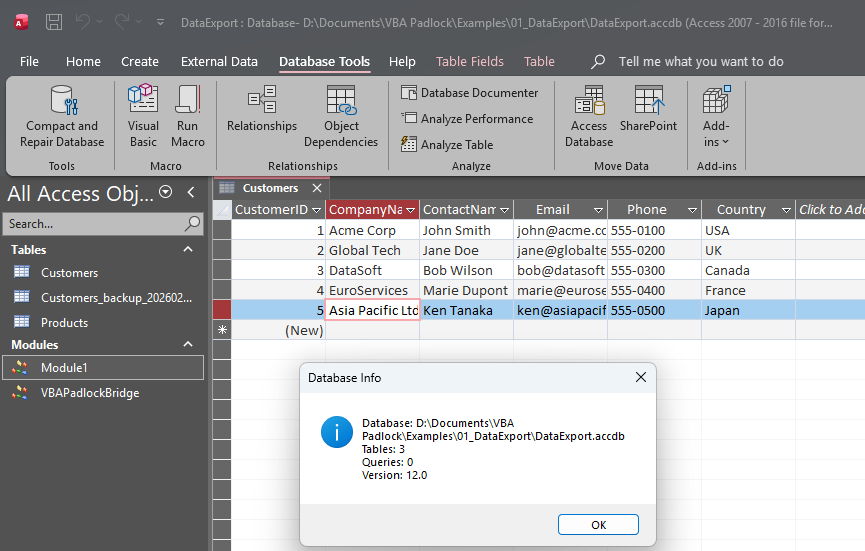
This calls GetDatabaseInfo() in the compiled DLL, which queries Application.CurrentDb and returns a formatted string with the database name, table count, query count, and version.

Access database displaying information retrieved from the protected DLL

Sub Demo_ExportToCSV()
Dim TableName As String
Dim FilePath As String
Dim Success As Variant
TableName = InputBox("Enter table name to export:", "Export to CSV", "Customers")
If Len(TableName) = 0 Then Exit Sub
FilePath = CurrentProject.Path & "\" & TableName & ".csv"
Success = VBAPL_Execute("ExportToCSV", TableName, FilePath, ";")
If Success Then
MsgBox "Exported to:" & vbCrLf & FilePath, vbInformation, "Export Complete"
Else
MsgBox "Export failed. Check if table exists.", vbExclamation
End If
End Sub

Notice the three arguments passed to ExportToCSV: the table name, the output file path, and the delimiter character. The function returns True on success and False on failure.

Sub Demo_ExportToJSON()
Dim TableName As String
Dim FilePath As String
Dim Success As Variant
TableName = InputBox("Enter table name to export:", "Export to JSON", "Customers")
If Len(TableName) = 0 Then Exit Sub
FilePath = CurrentProject.Path & "\" & TableName & ".json"
Success = VBAPL_Execute("ExportToJSON", TableName, FilePath)
If Success Then
MsgBox "Exported to:" & vbCrLf & FilePath, vbInformation, "Export Complete"
Else
MsgBox "Export failed. Check if table exists.", vbExclamation
End If
End Sub

The JSON output is UTF-8 encoded and produces a well-formed JSON array with one object per row.

Sub Demo_BackupTable()
Dim TableName As String
Dim Success As Variant
TableName = InputBox("Enter table name to backup:", "Backup Table", "Customers")
If Len(TableName) = 0 Then Exit Sub
Success = VBAPL_Execute("BackupTable", TableName, "_backup")
If Success Then
MsgBox "Backup created successfully!", vbInformation
Else
MsgBox "Backup failed. Check if table exists.", vbExclamation
End If
End Sub

This creates a copy of the table named Customers_backup_20260207_143022 (with the current date and time appended automatically).

Sub Demo_ExportAllTables()
Dim FolderPath As String
Dim Count As Variant
FolderPath = CurrentProject.Path & "\Export"
' Create folder if it does not exist
If Dir(FolderPath, vbDirectory) = "" Then
MkDir FolderPath
End If
Count = VBAPL_Execute("ExportAllTablesToCSV", FolderPath, ";")
MsgBox Count & " table(s) exported to:" & vbCrLf & FolderPath, vbInformation, "Export Complete"
End Sub
Sub Demo_ExecuteScalar()
Dim SQL As String
Dim Result As Variant
SQL = "SELECT COUNT(*) FROM Customers"
Result = VBAPL_Execute("ExecuteScalar", SQL)
If Not IsNull(Result) Then
MsgBox "Result: " & CStr(Result), vbInformation
Else
MsgBox "Query returned no result or error.", vbExclamation
End If
End Sub

Step 7: Call DLL Functions from an Access Form

Section titled “Step 7: Call DLL Functions from an Access Form”

A common Access pattern is to wire buttons on a form to DLL functions. Here is how you might build an export form:

' In a form module (e.g., frmExportTools)
Private Sub btnExportCSV_Click()
Dim TableName As String
Dim FilePath As String
Dim Success As Variant
TableName = Me.cboTableName.Value
If Len(TableName) = 0 Then
MsgBox "Please select a table first.", vbExclamation
Exit Sub
End If
FilePath = CurrentProject.Path & "\" & TableName & ".csv"
Success = VBAPL_Execute("ExportToCSV", TableName, FilePath, ",")
If Success Then
MsgBox "Exported " & TableName & " to CSV.", vbInformation
Else
MsgBox "Export failed.", vbCritical
End If
End Sub
Private Sub btnExportJSON_Click()
Dim TableName As String
Dim FilePath As String
Dim Success As Variant
TableName = Me.cboTableName.Value
If Len(TableName) = 0 Then
MsgBox "Please select a table first.", vbExclamation
Exit Sub
End If
FilePath = CurrentProject.Path & "\" & TableName & ".json"
Success = VBAPL_Execute("ExportToJSON", TableName, FilePath)
If Success Then
MsgBox "Exported " & TableName & " to JSON.", vbInformation
Else
MsgBox "Export failed.", vbCritical
End If
End Sub
Private Sub btnShowInfo_Click()
Dim Info As Variant
Info = VBAPL_Execute("GetDatabaseInfo")
MsgBox Info, vbInformation, "Database Info"
End Sub
Private Sub Form_Load()
' Populate the table dropdown from the DLL
Dim Tables As Variant
Tables = VBAPL_Execute("GetTableList")
If Len(Tables) > 0 Then
Dim TableArray() As String
TableArray = Split(Tables, ",")
Me.cboTableName.RowSourceType = "Value List"
Me.cboTableName.RowSource = Tables
End If
End Sub

Use the Distribution dialog to package your database with its DLLs:

  1. Click Distribute in the ribbon.

  2. Choose Create ZIP Archive to generate a ready-to-ship package.

  3. The ZIP contains the correct folder structure:

    MyDatabase.accdb
    bin\
    ├── MyDatabaserun32.dll
    ├── MyDatabaserun64.dll
    └── MyDatabase.dll
  4. Send the ZIP to your users. They extract it to a local folder and open the .accdb file.


Your compiled scripts have full access to the Access Application COM object. This means you can use:

  • Application.CurrentDb — to open recordsets, execute queries, and read table definitions
  • Application.DoCmd — to run Access actions like TransferSpreadsheet, TransferText, and DeleteObject
  • Application.CurrentProject.Path — to get the database file location

When iterating over TableDefs, always filter out Access system tables (prefixed with MSys) and temporary tables (prefixed with ~). The example code demonstrates this pattern.

The example uses CurrentProject.Path from the calling VBA code to build file paths. Since CurrentProject is an Access VBA object (not available inside the DLL), pass the full path as a parameter to your compiled functions.

Access fields frequently contain NULL values. The export functions in this example handle NULLs explicitly — check IsNull() before converting field values to strings.


ProblemSolution
”Failed to initialize DLL” errorMake sure the bin\ folder is next to the .accdb file and contains all three DLLs
Export functions return FalseVerify the table name is correct and the output path is writable
CountRecords returns -1The table does not exist or the name is misspelled
Access security warning about macrosClick “Enable Content” when opening the database, or add the folder to Access Trusted Locations
DLL not loading on another computerThe user needs to extract the full ZIP (database + bin\ folder) to a local, writable folder

Licensing Setup

Add license key activation to your Access database so only authorized users can run the exports.

Read the guide →