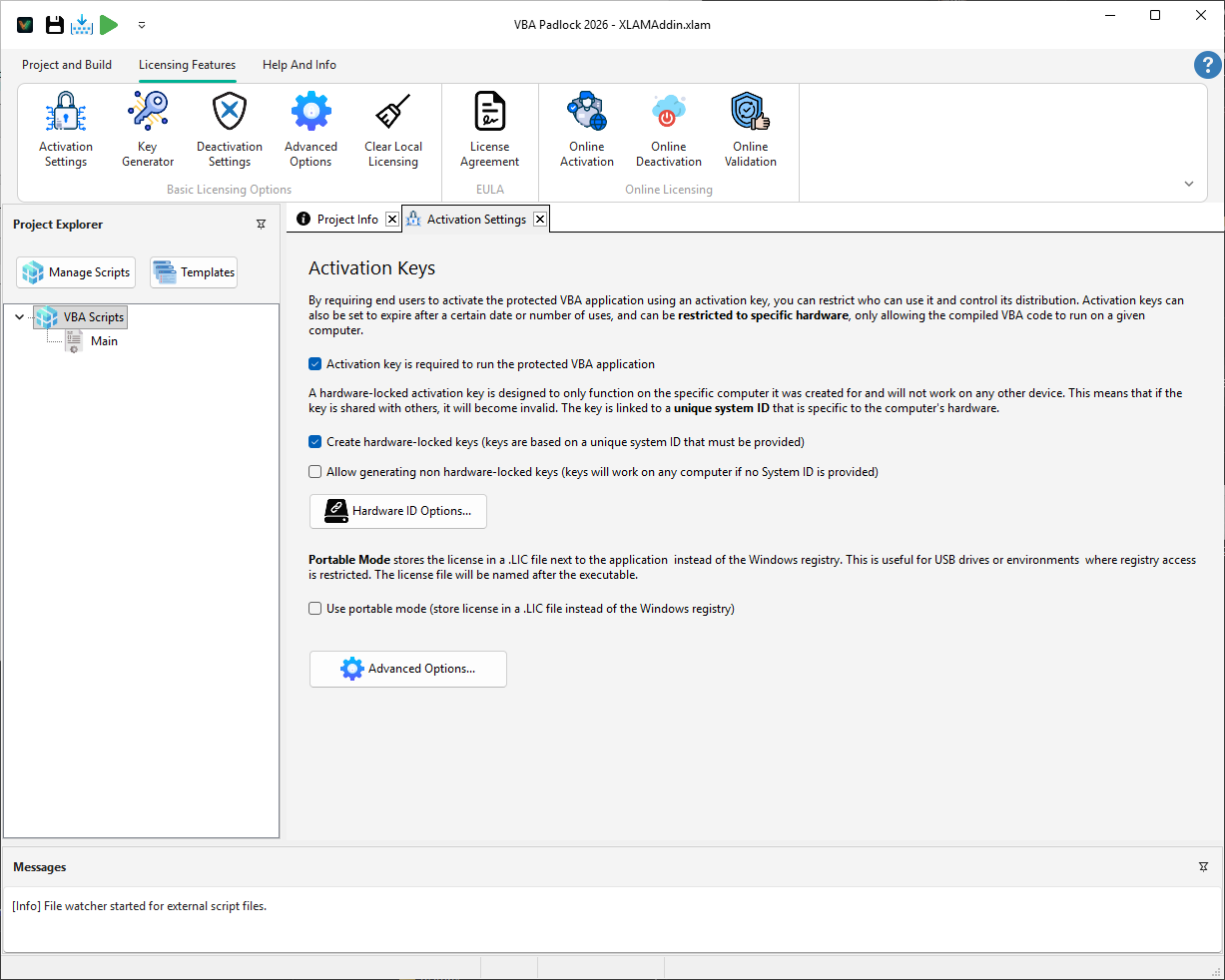
Activation Required
Require a license key to run the code.
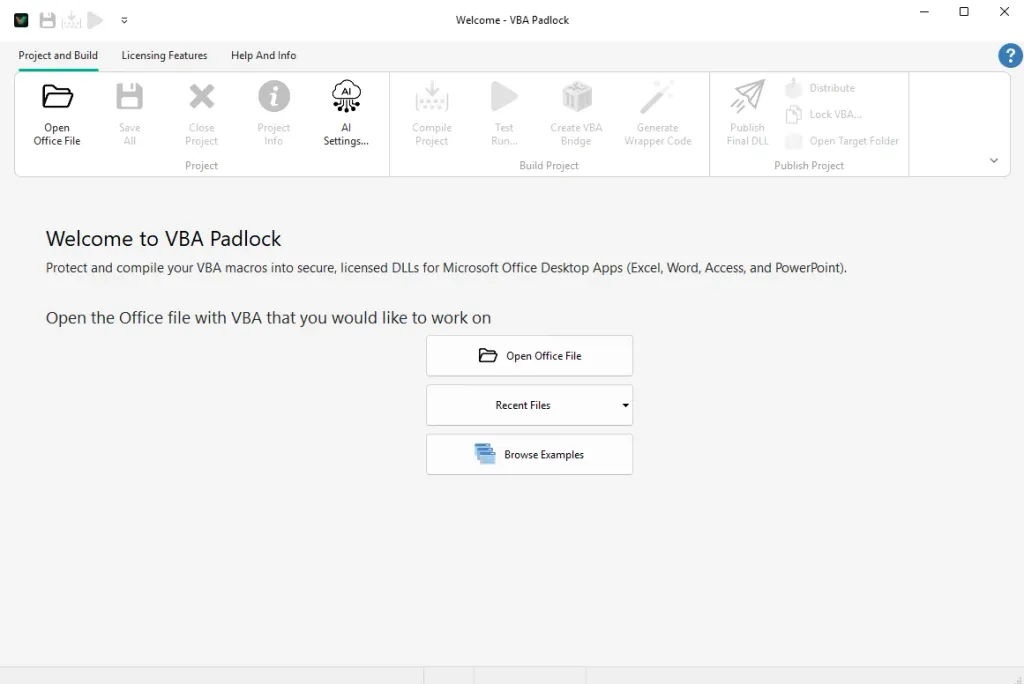
You’ve installed VBA Padlock and you want to see it protect something real. In this guide you’ll take HelloWorld, the small Excel example that ships with VBA Padlock, and walk it through the complete workflow: open, review the analysis, produce a protected copy, and watch the same buttons work with the code gone. About 10 minutes, no code to write.
Launch VBA Padlock and open the example
On the Welcome Screen, click Browse Examples and pick Excel → 01_HelloWorld. (Every example ships with a README describing what it does.)
HelloWorld.xlsm is a normal workbook: a Welcome sheet with buttons, a Greetings module with functions like Greet(UserName) and CalculateDiscount(Price, DiscountRate), and a Demo module that drives them.
Watch the automatic analysis
The first time a file is opened, VBA Padlock reads its VBA modules straight from the workbook (macros stay disabled) and analyzes them automatically. The Project Explorer on the left fills with the extracted modules, each carrying a verdict badge.
Read the Protection Review
Click View Report in the Protect tab. Every procedure of Greetings and Demo shows -> DLL: they will be compiled and removed from the workbook. Anything in ThisWorkbook or the sheets shows VBA (document): event handlers and document code stay in the file, by design.
The footer sums it up, e.g. 10 -> DLL · 0 VBA · 0 forms · 1 EVT.
Produce the protected file
Click Produce Protected Office File (or Test Run Ctrl+F5 to produce and open it). The progress dialog walks through compiling the modules, injecting the wrappers into a copy of the workbook, and verifying the result:
Protected file created:
HelloWorld_protected.xlsm
Your original HelloWorld.xlsm is untouched; Produce always writes to a copy.
Run the protected workbook
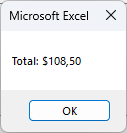
Open HelloWorld_protected.xlsm and click the buttons on the Welcome sheet (or run the Demo_* macros from Alt+F8). Everything works exactly as before.
See what changed
In the protected workbook, open the VBA editor (Alt+F11) and look at the Greetings module: your functions are still declared there, but their bodies are now one-line wrappers that call the compiled DLL through the VBAPLBridge module. The actual logic lives in the encrypted DLL inside the bin\ folder.
Distribution
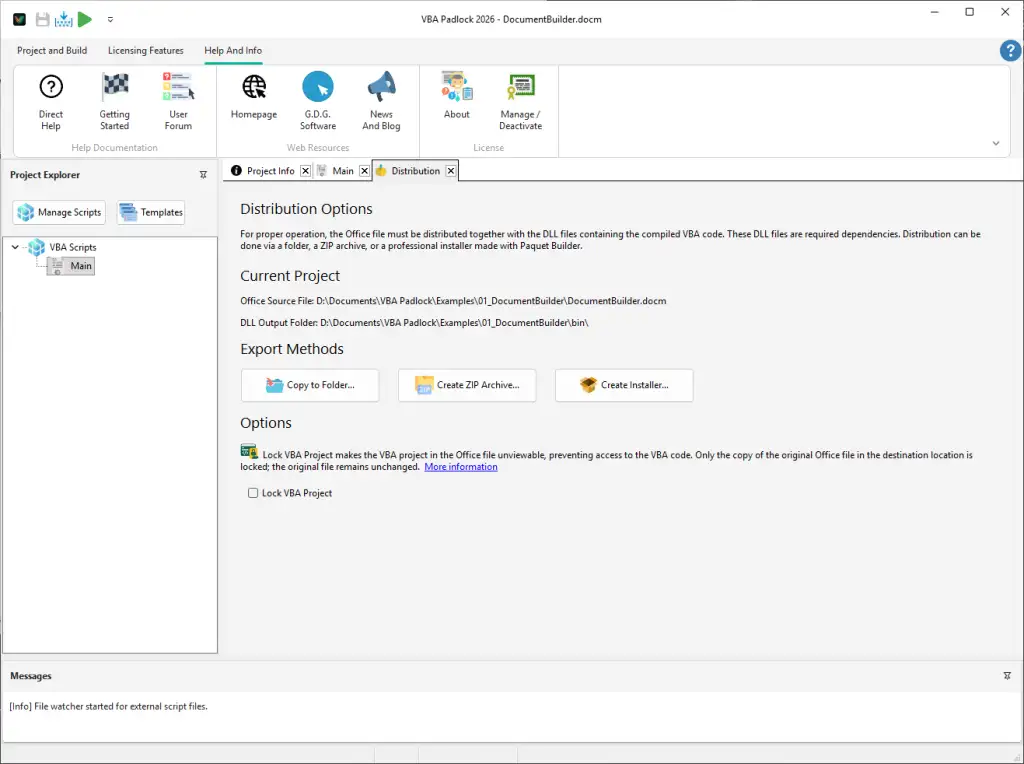
When you’re ready to share, click Distribute in the Protect tab. It packages the protected workbook and its bin\ DLLs into a ZIP or folder, and warns you if you’re about to ship a file that hasn’t been produced yet.
That’s the whole loop. Now open one of your workbooks: the only differences you’ll see are in the Protection Review. Real-world projects usually keep a few procedures in VBA (event handlers, UserForm code, procedures sharing module-level variables). Each row tells you why, and the Protection Review reference explains how to react.
You can easily add licensing and trial restrictions to your project:
Activation Required
Require a license key to run the code.
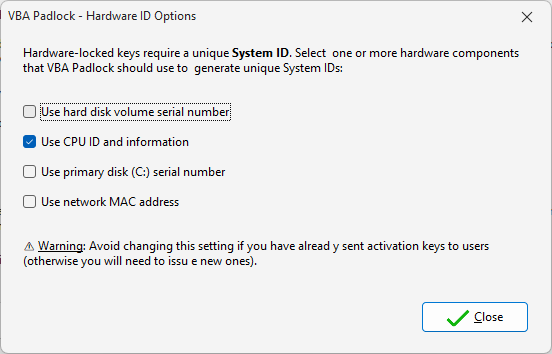
Hardware Locking
Lock the license to a specific computer.
Protect an Excel Workbook
The full Excel tutorial, from analysis to licensing. Read the guide →
Automatic Protection
How the analysis and conversion work under the hood. Read the feature guide →
Licensing Setup
Configure trial periods and generate license keys. Read the guide →
VBA Compatibility
Check which VBA features move to the DLL. View reference →