Protect an Excel Workbook
The most detailed host tutorial, including full licensing setup. Read the guide
You’ve built PowerPoint automation with VBA (slide generation, corporate deck builders, export pipelines), and you want to distribute it without exposing your source code. In this tutorial you’ll protect a macro-enabled presentation with the automatic workflow: open, review, produce. We’ll use the bundled SlideBuilder example as our guide, but every step applies unchanged to your own .pptm or .ppam.
What you’ll get:
SlideBuilder_protected.pptm) whose macros work exactly as beforeTime needed: 10-15 minutes
Launch VBA Padlock and click Open Office File (Ctrl+O) in the Protect tab
Select your presentation: for this tutorial, SlideBuilder.pptm, which contains a SlideTools module (title/content slides, shapes, transitions, PDF and image export) and a Demo module driving it
VBA Padlock extracts the VBA modules directly from the presentation (macros stay disabled) and analyzes them automatically
The Project Explorer fills with your modules and their verdict badges, and a SlideBuilder.vbapadlock project folder appears next to the file.
Click View Report. For a presentation like SlideBuilder you’ll see:
SlideTools and Demo standard modules: every procedure -> DLL.WithEvents in class or document modules: they stay in the file (VBA with an event-handler reason); PowerPoint only fires events on code living in the host.If your code uses symbolic constants (ppLayoutTitle, ppSaveAsPDF, msoShapeRectangle, …), open References: PowerPointConstants (~1,500 pp* constants) and OfficeConstants (mso*) are pre-selected for PowerPoint projects, so those names compile straight into the DLL; no magic numbers needed.
Optionally review Project Info (title, version, copyright, DLL name; defaults are pre-filled)
Click Produce Protected Office File, or Test Run (Ctrl+F5) to produce and open it in PowerPoint
On success, your folder contains:
SlideBuilder\├── SlideBuilder.pptm (your source - keep it private!)├── SlideBuilder.vbapadlock\ (project settings)├── SlideBuilder_protected.pptm (ship this)└── bin\ ├── SlideBuilderrun32.dll ├── SlideBuilderrun64.dll └── SlideBuilder.dllYour original presentation is never modified; Produce always writes to a copy.
Open SlideBuilder_protected.pptm in PowerPoint and enable macros
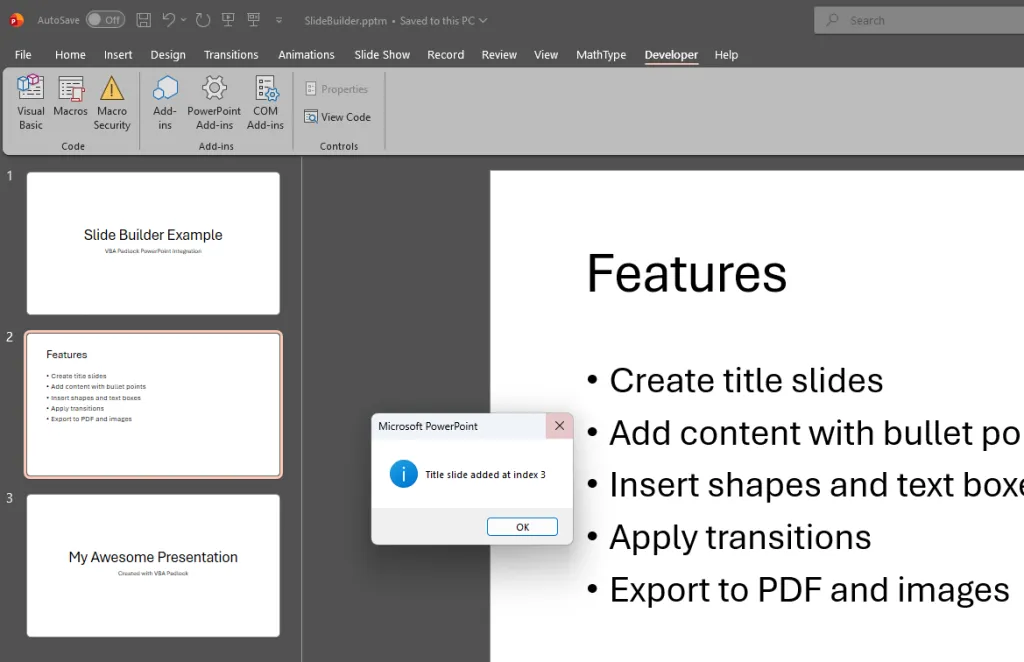
Press Alt+F8 and run the Demo_* macros, or RunAllDemos to build a sample deck, or ShowMenu for an interactive menu
Press Alt+F11: the SlideTools procedures are now one-line wrappers calling the compiled DLL via the VBAPLBridge module; your logic is gone from the file
Licensing works identically for every Office host:
Licensing Features tab → Activation Settings: check “Activation key is required to run the protected VBA application”, optionally with hardware-locked keys
Produce again: licensing rules are baked into the DLL, so the protected copy must be rebuilt
Key Generator: generate a test key for your own Hardware ID and verify the activation dialog appears when you run a protected macro
The Excel tutorial’s licensing section covers the options in more detail; everything there applies to PowerPoint too.
Click Distribute in the Protect tab and create a ZIP or folder copy. The protected presentation and its bin\ folder must always travel together:
SlideBuilder_v1.0.zip├── SlideBuilder_protected.pptm└── bin\ ├── SlideBuilderrun32.dll ├── SlideBuilderrun64.dll └── SlideBuilder.dllProtect an Excel Workbook
The most detailed host tutorial, including full licensing setup. Read the guide
Automatic Protection
The analysis, verdicts, and conversion in depth. Read the feature guide
Setting Up Licensing
Trial periods, activation keys, and hardware locking. Read the guide
Online Activation
Let users activate over the internet with your own server. Read the guide
VBAPL_* functions available in your presentationPowerPointConstants and friends