Distribution
Compare other packaging methods. View Reference →
The Create Installer workspace is for developers who want to provide a polished, enterprise-grade experience to their customers. Instead of sending a ZIP file, you can generate a complete Windows setup project that handles file placement, shortcuts, and uninstallation.
To open this dialog, click the Create Installer button in the Distribution panel.
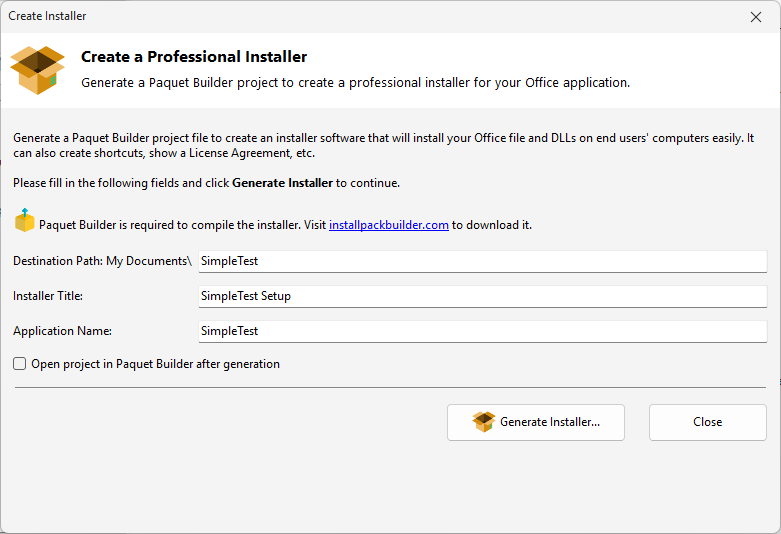
VBA Padlock Studio integrates with Paquet Builder to transform your project files into a standalone .exe installer.
bin\ folder into the correct hierarchy on the target machine.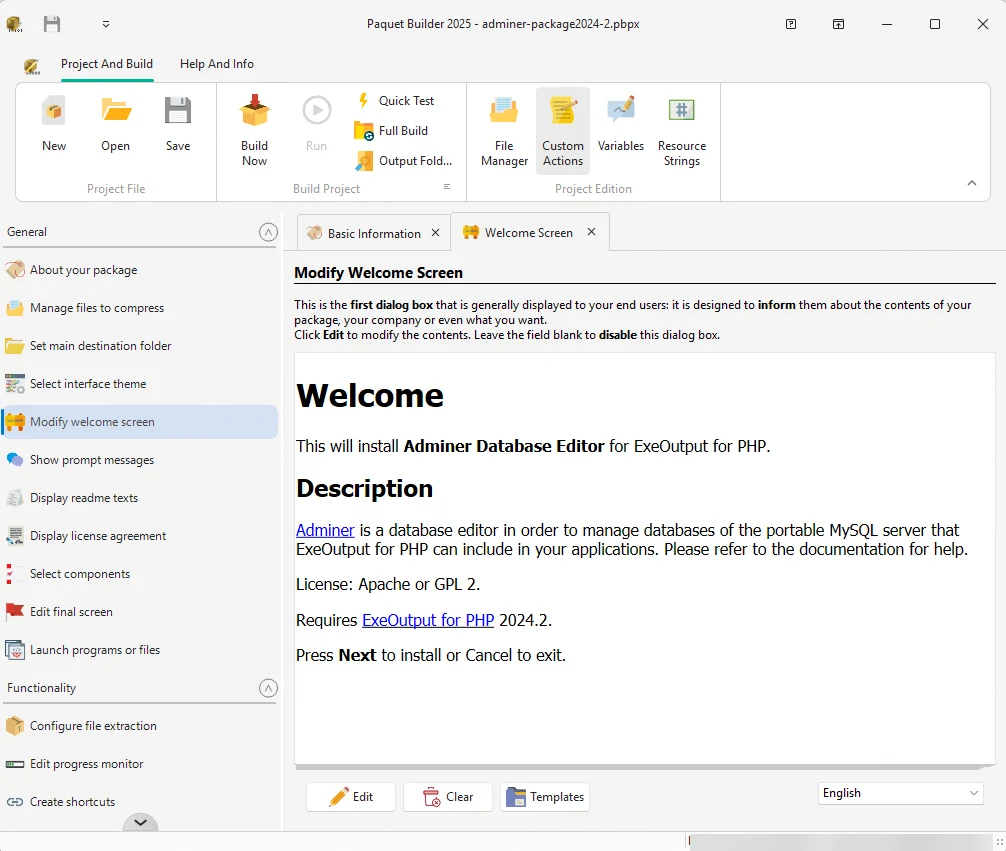
Configure how your application appears to the end-user during and after installation:
My Documents or Program Files) to ensure the user knows exactly where your software resides..pbpx project file..exe for your customers.Distribution
Compare other packaging methods. View Reference →
Publish Final DLL
Prepare your binaries for the installer. View Reference →