Skip to content

Deactivation Settings

The Deactivation Settings workspace is about flexibility and trust. By allowing users to deactivate their software, you enable a seamless license transfer experience when they upgrade their computers, significantly reducing your manual support burden. Learn more in the Deactivation Feature guide.
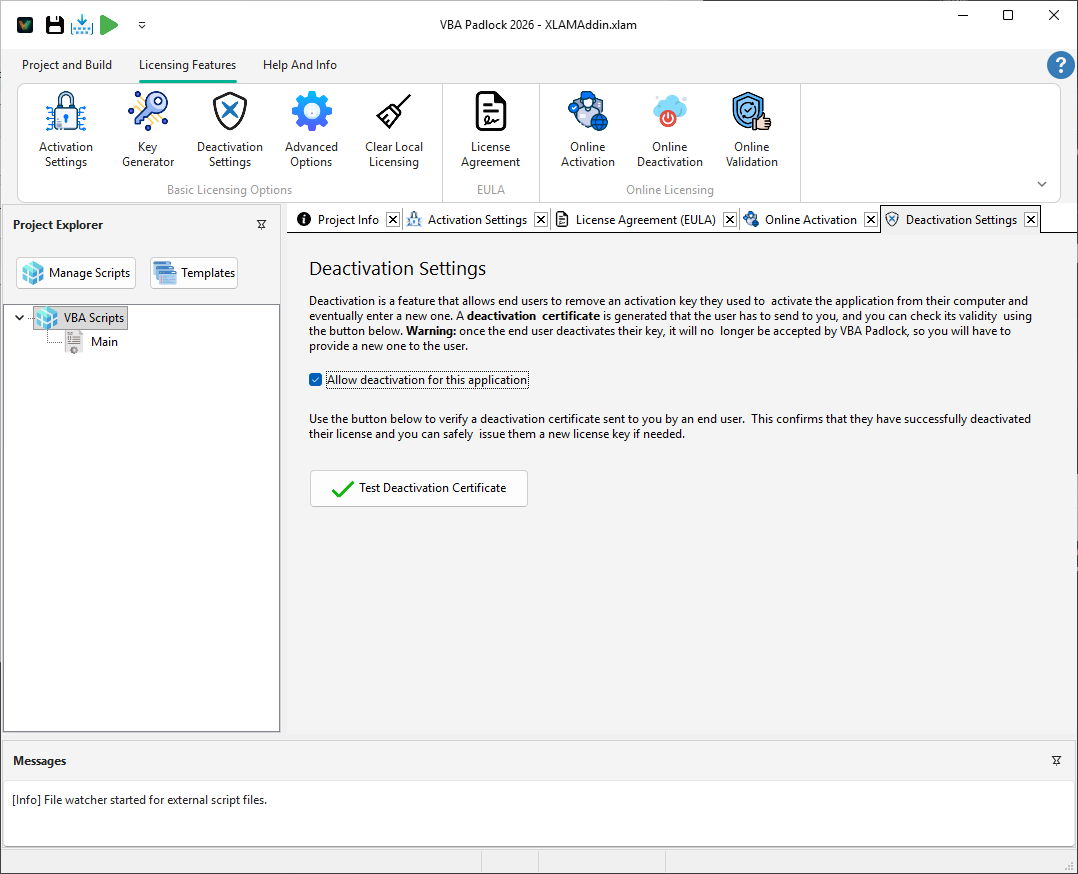
VBA Padlock Studio Deactivation Settings for license transfer


Modern users expect to move their software as they upgrade hardware. Enabling deactivation turns a rigid license into a mobile asset:

  • Self-Service Transfers: When enabled, users can trigger a deactivation through your UI. This wipes the license from their local machine and generates a cryptographically signed Deactivation Certificate.
  • Proof of Removal: The certificate serves as definitive proof that the software is no longer usable on the previous machine, allowing you to confidently issue a new key for their new hardware.
  • Security Integrity: Once a license is deactivated, it is permanently neutralized on that specific computer.

The deactivation process follows a secure, step-by-step lifecycle:

  1. Request: The user initiates deactivation via the API (e.g., VBAPL_ShowDeactivation).
  2. Neutralize: VBA Padlock scrubs the activation data from the registry or local license file.
  3. Certify: The application generates a unique, signed string (the certificate).
  4. Verify: You receive this string and use the Test Deactivation Certificate tool to confirm its authenticity.
  5. Re-Issue: Once validated, you generate a new key for the user’s new Hardware ID.

🛠️ How to Test a Deactivation Certificate

Section titled “🛠️ How to Test a Deactivation Certificate”

VBA Padlock Studio includes a built-in validator to ensure certificates haven’t been tampered with.
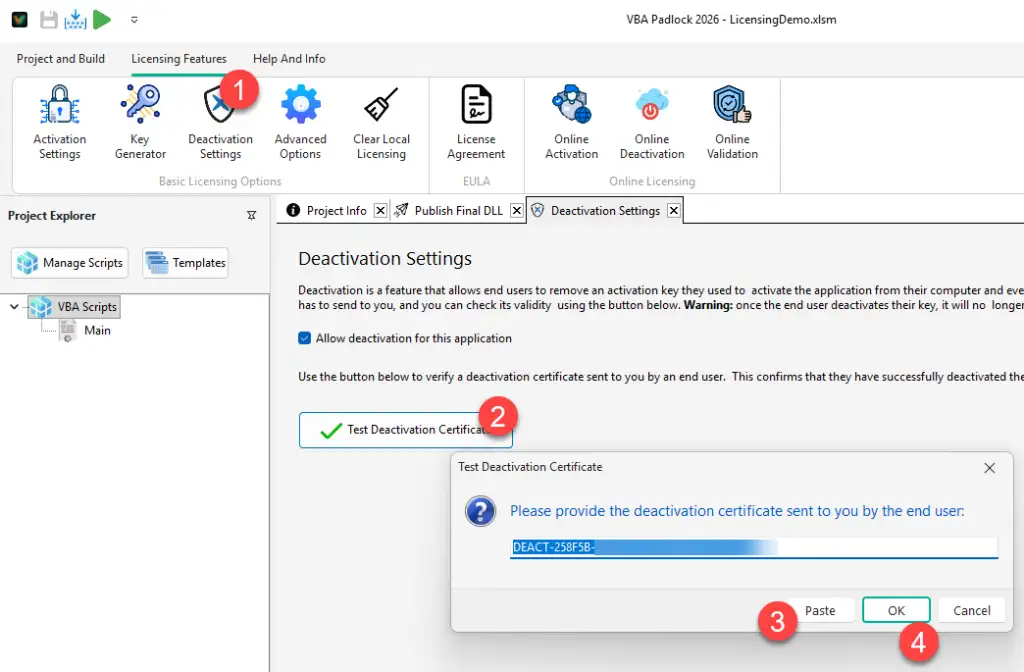
  • Integrity Check: Paste any certificate into the Test Deactivation Certificate tool.
  • Immediate Feedback: The Studio will confirm whether the string is a valid, authentic proof of deactivation for your specific project.

Testing a deactivation certificate in VBA Padlock Studio

When the certificate is valid, VBA Padlock Studio displays a confirmation message with the details of the deactivated license:
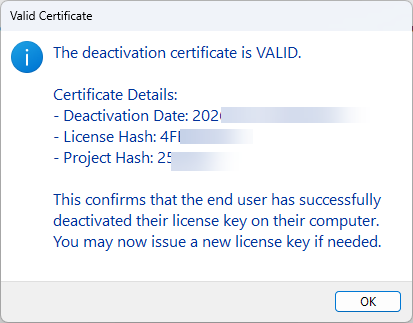
Valid deactivation certificate confirmation


🌐 Going Further with Online Deactivation

Section titled “🌐 Going Further with Online Deactivation”

The manual certificate workflow described above works well for small-scale operations, but as your customer base grows, reviewing certificates by hand can become a bottleneck. Consider setting up Online Deactivation to automate the entire process:

  • 24/7 Self-Service: Your customers can deactivate their license at any time — no need to wait for you to be available.
  • Automatic Server Notification: The deactivation is reported to your activation server in real time, so your license database is always up to date.
  • Instant Re-Activation: Combined with Online Activation, users can deactivate on their old machine and re-activate on a new one without any manual intervention from you.