Online Activation
Automate activation with a PHP server so users can activate over the internet.
You’ve built a powerful Excel application with VBA macros, and now you want to distribute it without exposing your source code. In this tutorial, you’ll walk through the complete automatic workflow: VBA Padlock analyzes the workbook you already have, compiles your logic into a protected DLL, and produces a protected copy where your macros still work, but your code is gone.
What you’ll get:
MyExcelApp_protected.xlsm) whose macros and buttons work exactly as beforeTime needed: 10-15 minutes
Launch VBA Padlock
Click “Open Office File” in the Protect tab (or press Ctrl+O)
Select your Excel workbook or add-in (.xlsm or .xlam file); for this tutorial, we’ll use a file called MyExcelApp.xlsm
VBA Padlock reads your VBA modules straight from the workbook (macros stay disabled during the read) and analyzes them automatically
That’s it: no importing, no copy-pasting code. Your modules appear in the Project Explorer, each with a verdict badge, and a .vbapadlock project folder is created next to your file to hold settings and analysis data.
Suppose MyExcelApp.xlsm contains a standard module Greetings with functions like these:
Sub HelloWorld()    MsgBox "Hello from MyExcelApp!", vbInformation, "MyExcelApp"End Sub
Function CalculateDiscount(Price, DiscountRate)    If DiscountRate < 0 Or DiscountRate > 1 Then        CalculateDiscount = Price    Else        CalculateDiscount = Price * (1 - DiscountRate)    End IfEnd Function
Sub WriteToCell(CellAddress, Value)    Application.ActiveSheet.Range(CellAddress).Value = ValueEnd Sub
All of these will move to the DLL, including the ones that talk to Excel through the Application object.
Click View Report in the Protect tab (the review also opens after each analysis). Every procedure gets a disposition:
| You’ll see | Meaning |
|---|---|
-> DLL | Compiled into the DLL; a delegating wrapper replaces it in the workbook. |
VBA | Stays in the workbook; the row tells you why (e.g. shared module-level state). |
VBA (document) | ThisWorkbook / Sheet1 code; always stays. |
VBA (form) | UserForm code-behind; always stays. |
For a typical workbook, expect your standard modules to show -> DLL and your event handlers (Workbook_Open, Worksheet_Change, button handlers in sheet modules) to stay in VBA. That’s by design: Office only fires events on code living in the host module.
If a procedure you expected to move shows VBA with a reason like shared module-level state 'Counter', you can restructure the code and click Re-analyze, or simply accept the verdict. Per-procedure checkboxes let you keep any routine in plain VBA on purpose.
The automatic workflow fills in working defaults, but two tabs are worth a glance before shipping:
ExcelConstants and OfficeConstants are pre-selected, so symbolic constants like xlUp or msoTrue compile straight into the DLL.| Field | Example Value | Purpose |
|---|---|---|
| Application Title | My Excel Application | Shown in activation dialogs and title bars |
| Version Number | 1.0.0.0 | Your application’s version |
| File Copyright | © 2026 My Company | Embedded in the DLL properties (required) |
| Output DLL Filename | MyExcelApp | Base name for all output DLL files |
Click “Produce Protected Office File”, or Test Run (Ctrl+F5) to produce and open the result in Excel
The progress dialog compiles your modules, injects the wrappers and the VBAPLBridge module into a copy of your workbook, and verifies the result
On success you’ll see “Protected File Created” with an Open in Excel button. Your folder now looks like this:
MyExcelApp\├── MyExcelApp.xlsm (your source - keep it private!)├── MyExcelApp.vbapadlock\ (project settings)├── MyExcelApp_protected.xlsm (the protected copy - ship this)└── bin\ ├── MyExcelApprun32.dll (32-bit runtime) ├── MyExcelApprun64.dll (64-bit runtime) └── MyExcelApp.dll (your compiled code - satellite DLL)Open MyExcelApp_protected.xlsm in Excel (enable macros when prompted)
Run your macros. Buttons, Alt+F8 macros, worksheet functions: everything works as before
Press Alt+F11 and look at your modules: the procedure names are still there, but each body is now a one-line wrapper delegating to the compiled DLL through VBAPL_Execute
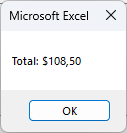
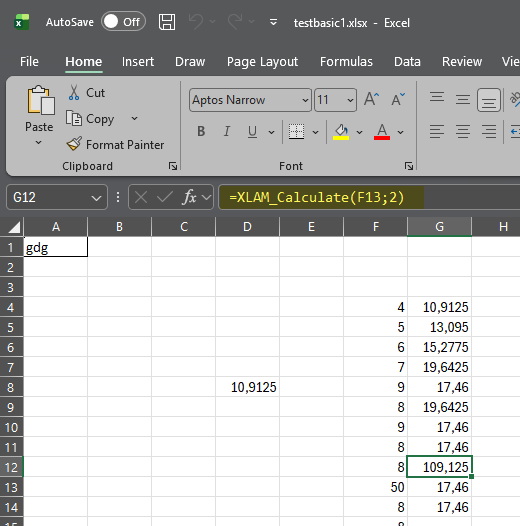
Because the wrappers keep the original names and signatures, worksheet formulas that call your VBA functions (=CalculateDiscount(A1, 0.15)) keep working too.
If you want to require an activation key before your application runs, follow this step. If you’re just protecting your code without licensing, skip ahead to Step 7.
Switch to the “Licensing Features” tab in the VBA Padlock ribbon
Click “Activation Settings”
Check “Activation key is required to run the protected VBA application”
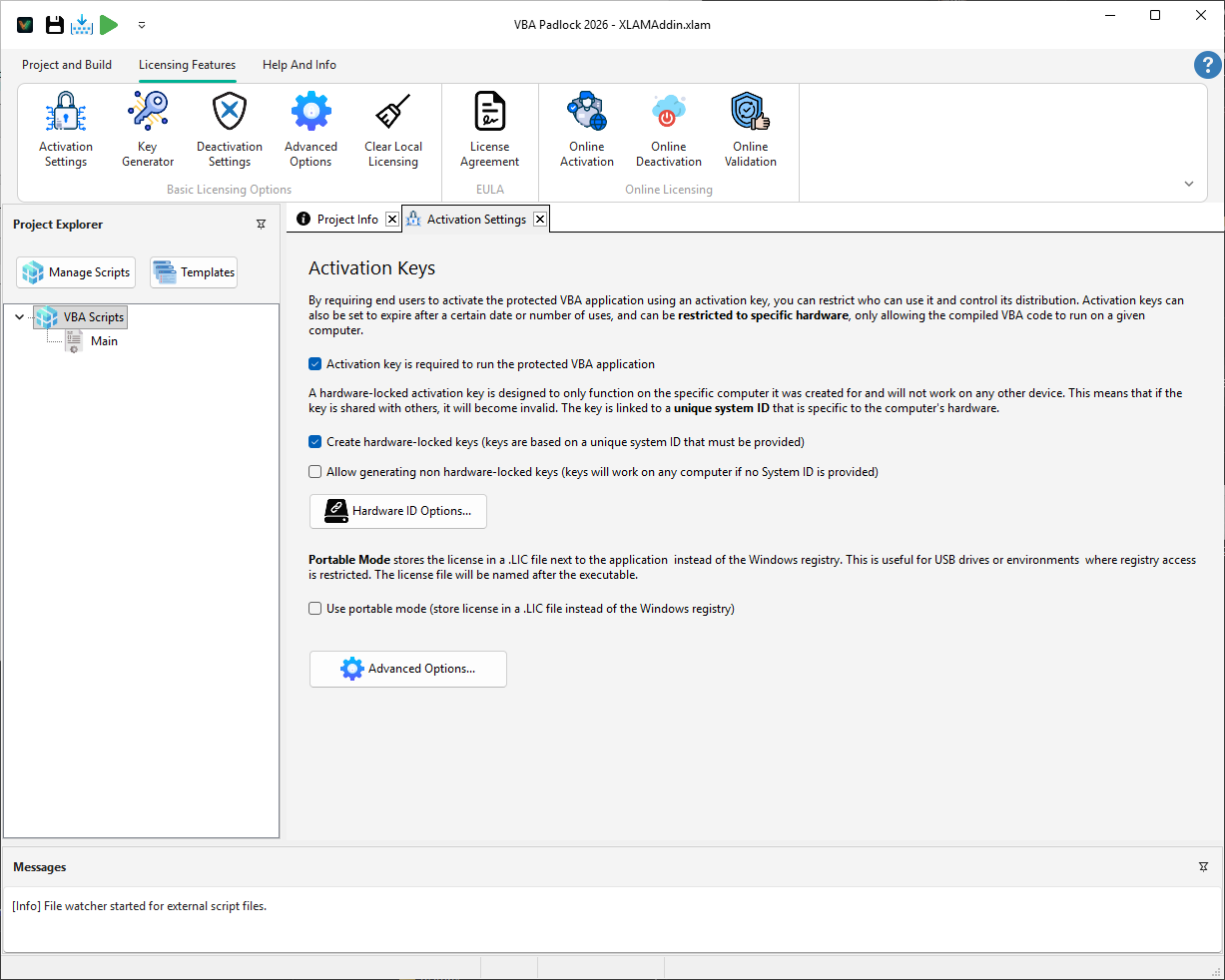
Hardware locking ties each license key to a specific computer, preventing key sharing.
In the Activation Settings tab, check “Create hardware-locked keys”
Click “Hardware ID Options…” to choose which hardware components to include:
Licensing rules are baked into the DLL, so run Produce Protected Office File again (back on the Protect tab). The new protected copy now enforces activation: the activation dialog appears automatically when a protected function runs without a valid license.
To test the activation flow on your own computer:
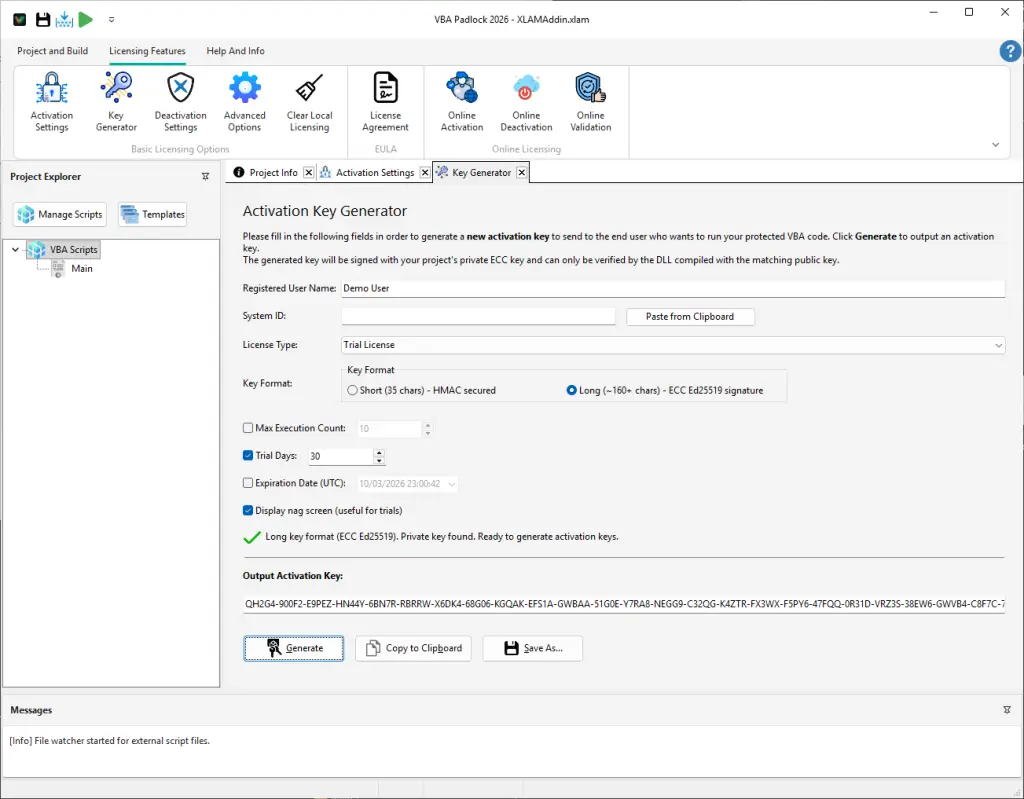
Click “Key Generator” in the Licensing Features ribbon
The Hardware ID field shows your computer’s ID
Click “Generate Key” and copy the generated key; you’ll enter it in the activation dialog
The bridge exposes the licensing API to your VBA, so you can integrate checks wherever you like, for instance a Workbook_Open handler in ThisWorkbook:
Private Sub Workbook_Open() If Not VBAPL_IsLicenseValid() Then VBAPL_ShowActivation End IfEnd SubOr let users look up their Hardware ID to send it to you:
Sub ShowMyHardwareID() MsgBox "Your Hardware ID is:" & vbCrLf & VBAPL_GetHardwareID(), _ vbInformation, "Hardware ID"End SubSee the VBA Bridge API Reference for the complete VBAPL_* list. The bundled 04_LicensingDemo example shows the full lifecycle (EULA, trial, activation, deactivation) wired into a real workbook.
You’re ready to ship. VBA Padlock includes a Distribution tab to package your files with the correct folder structure.
Click “Distribute” in the Protect tab
Confirm the file label shows your protected copy (if it says no protected copy has been produced yet, run Produce first; Distribution will warn you before shipping an unprotected source)
Choose one of two options:
For this tutorial, select “Create ZIP Archive…” and choose a destination (e.g., MyExcelApp_v1.0.zip):
MyExcelApp_v1.0.zip├── MyExcelApp_protected.xlsm└── bin\ ├── MyExcelApprun32.dll ├── MyExcelApprun64.dll └── MyExcelApp.dllInclude this in your distribution (e.g., in a README.txt):
INSTALLATION INSTRUCTIONS=========================
1. Extract all files to a folder on your computer (e.g., C:\MyExcelApp\)
2. IMPORTANT: Keep the folder structure intact. The 'bin' folder must remain   in the same directory as the .xlsm file
3. Open the .xlsm file in Excel
4. If you see a security warning, click "Enable Content"
5. If prompted, enter your activation key and click "Activate"
6. You're ready to use the application!
IMPORTANT:- Keep the .xlsm file and the 'bin' folder together at all times- Do not move or rename files in the 'bin' folder- The 'bin' folder contains 3 DLL files that are required for operationCongratulations! Your Excel workbook is protected: the logic runs from an encrypted DLL, and the workbook you ship contains only wrappers and glue code.
Online Activation
Automate activation with a PHP server so users can activate over the internet.
Trial Mode
Let users try your application before requiring a license key.
License Deactivation
Allow users to transfer their license to a new computer.
Automatic Protection
Understand the analysis, verdicts, and conversion in depth.
Cause: The compile gate kept it in the workbook; the row’s reason tells you why (event handler, shared module-level state, depends on a kept procedure, unresolved host global…).
Solution: See the Protection Review reference for each reason and its fix. Typical remedies: move event logic into a standard-module Sub, add Option Explicit, or restructure module-level variables. Then click Re-analyze.
Cause: Excel cannot find the DLL files in the bin\ folder.
Solution:
bin\ folder exists in the same directory as the protected workbookbin\ folder contains all three DLL files:
MyExcelApprun32.dllMyExcelApprun64.dllMyExcelApp.dllbin\ folder or any files inside itCause: The activation key does not match the user’s Hardware ID.
Solution:
ShowMyHardwareID macro or call VBAPL_GetHardwareID())Cause: The stored license was deleted (e.g., Windows reinstall, registry cleanup).
Solution: The user needs to reactivate with their existing key. If the hardware has not changed, the same key will work again.
Cause: Excel’s security settings block macros.
Solution: Add the application folder to Excel’s Trusted Locations:
Cause: The return value of a generic VBAPL_Execute call is a Variant. If you assign it to a strongly typed variable without conversion, you may get a type mismatch.
Solution: Use CStr(), CDbl(), CLng(), or similar conversion functions when assigning the result to a typed variable, or declare your receiving variable as Variant. (The wrappers generated by Produce handle this for you.)
VBAPL_* functions