Quick Start
Protect your first file in minutes. Get started →
The Automatic Protection Workflow is the heart of VBA Padlock. You open your existing Excel, Word, PowerPoint, or Access file (the one with the VBA you already wrote), and VBA Padlock does the heavy lifting: it reads your macros, works out which procedures can safely move into a compiled DLL, shows you the plan, and then produces a protected copy of your document. Your original file is never modified.
That’s the whole loop. No manual script writing, no copy-pasting wrapper code, no bridge injection step; those are now handled by the conversion engine.
When you open a file (or click Re-analyze), VBA Padlock extracts your VBA modules directly from the Office file using a read-only COM session: macros stay disabled the whole time, and Access databases are copied first so the original is never touched.
Each procedure then goes through the compile gate: a per-procedure analysis that decides what can move into the DLL and what must stay in the document. The gate is conservative by design: anything that cannot safely run inside a DLL is kept in VBA, and the review tells you exactly why.
| Code | Verdict | Why |
|---|---|---|
| Standard-module procedures | → DLL | Compiled into the protected DLL; a delegating wrapper stays in the document. |
| Class modules | → DLL | Compiled into the DLL and removed from the document. |
Property Get/Let/Set in standard modules | → DLL | Moved as a group; accessors are never split between host and DLL. |
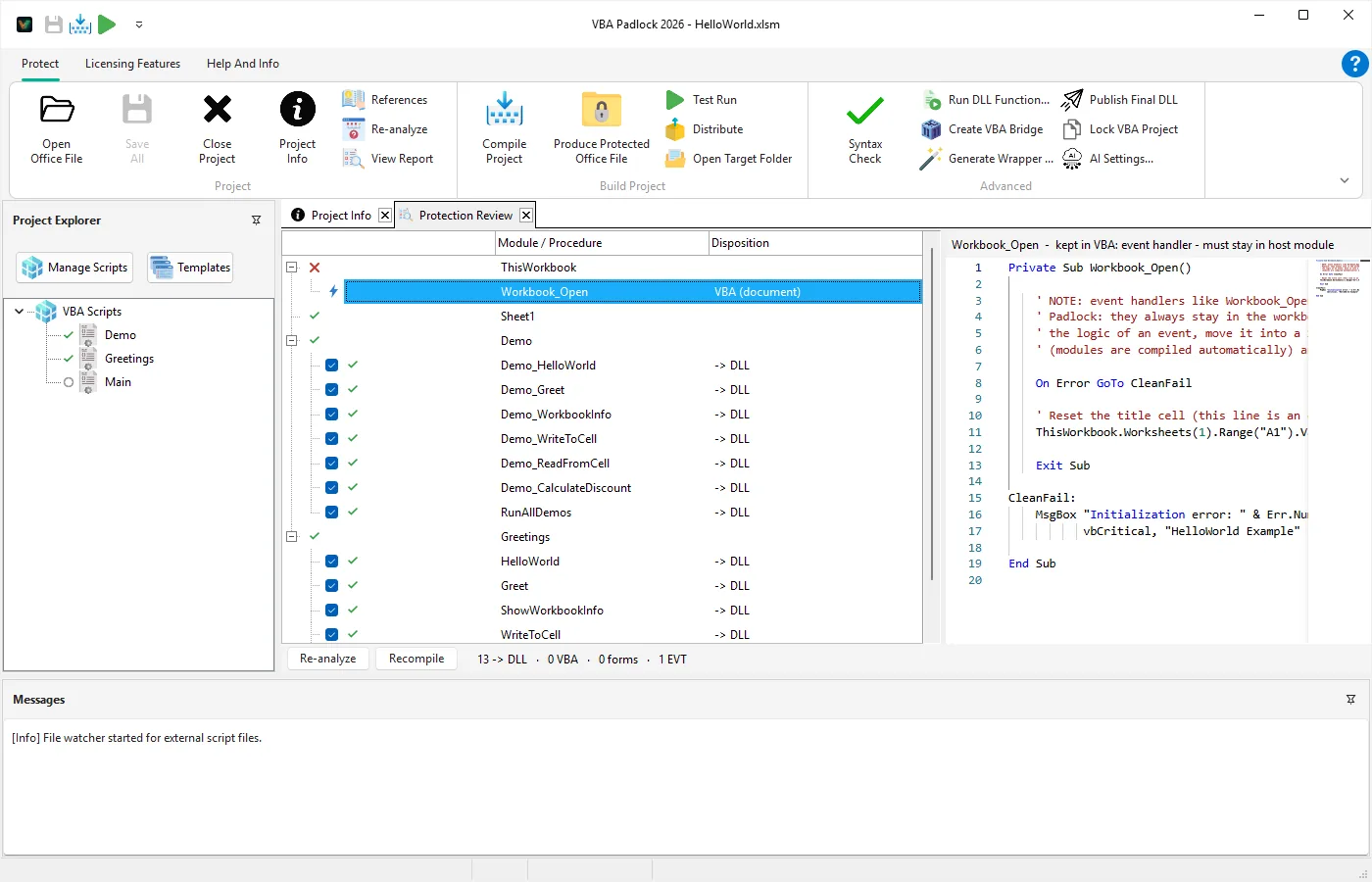
Event handlers (Worksheet_Change, Document_Open, …) | VBA | Office only fires events on code living in the host module. |
| UserForm modules | VBA (form) | Forms and their code-behind cannot run inside a DLL. |
Document modules (ThisWorkbook, Sheet1, …) | VBA (document) | Document-module code stays in the Office file. |
| Procedures using shared module-level variables | VBA | Moving them would split state between host and DLL. The whole group stays together. |
| Procedures depending on a kept procedure | VBA | The dependency closure is demoted safely (depends on <proc>). |
You can override individual decisions with the per-procedure checkboxes in the Protection Review, and if a forced move would create an unsafe host/DLL state split, VBA Padlock demotes the whole shared-state group rather than letting it break silently.
Application. compatibility transformMany real-world macros use unqualified host globals: Range, ActiveSheet, ThisWorkbook, and friends. VBA Padlock automatically qualifies them (Application.Range, …) during conversion so that more of your procedures can move into the DLL. The transform is scope-guarded and string/comment-safe, and covers With headers too.
Symbolic constants like xlUp, wdFormatPDF, ppLayoutTitle, acExportDelim, or msoTrue compile straight into the DLL. Which constant libraries are available is driven by the References dialog; sensible defaults are pre-selected per host.
Clicking Produce Protected Office File runs a five-phase pipeline (validate, import, build DLL, inject, verify) with live progress and a working Cancel button. See the Produce reference for the phase-by-phase details.
Safety is built in at every step:
<name>_protected<ext>.Protection is rarely a one-shot operation. The workflow is built for round trips:
.bak backup of the replaced source.Quick Start
Protect your first file in minutes. Get started →
Protection Review
Read and override the analysis verdicts. View Reference →
Produce & Test Run
The five-phase production pipeline. View Reference →
VBA Compatibility
Supported language constructs and remaining limits. View Reference →