Short Keys (HMAC)
35 Characters. Lightweight and easy for users to type. Ideal for standard activation, expiration dates, and basic hardware locking.
The Key Generator is the engine of your licensing business. It transforms project settings and customer identity into a secure, encrypted string (the Activation Key) that unlocks your application on the end-user’s machine. Learn more about licensing strategies in the Licensing Feature guide.
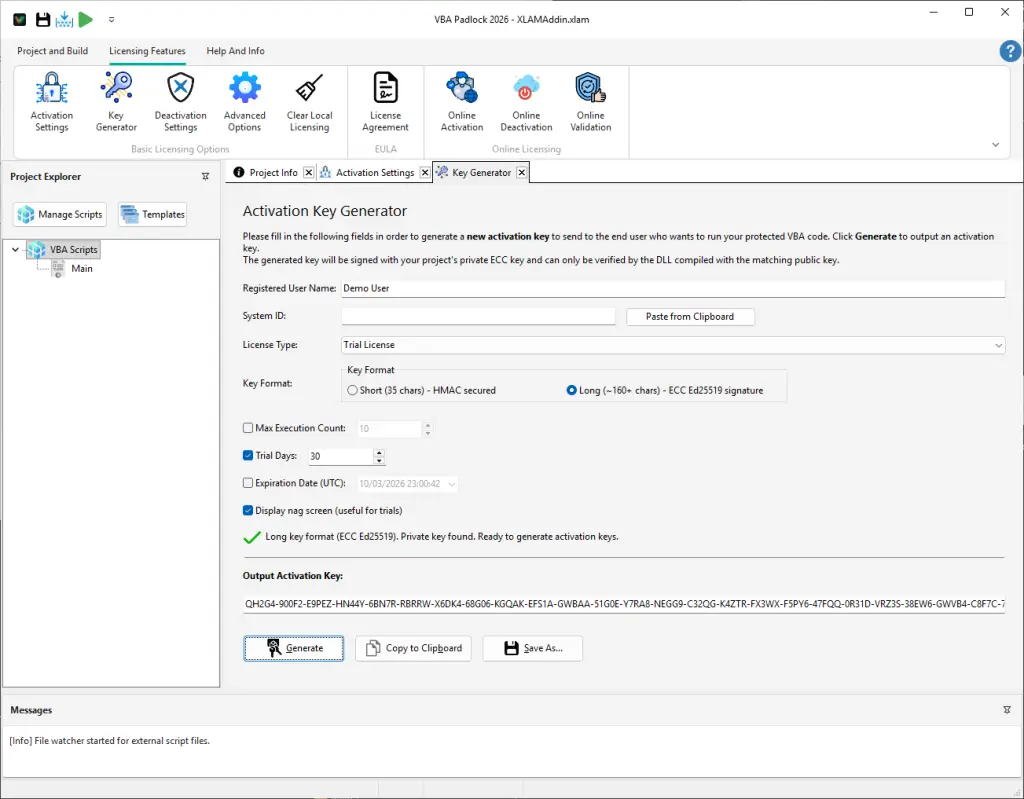
Every license key is bound to a registered identity, ensuring a professional “owned-by” experience for your customers.
Registered User Name: The name of the licensee. This is embedded in the key and will be displayed in the application’s “About” or “Activation” screens. You can also retrieve this name at runtime from your VBA code using VBAPL_GetRegisteredName() to personalize the user experience (for example, displaying the licensee name in a cell or on a slide):
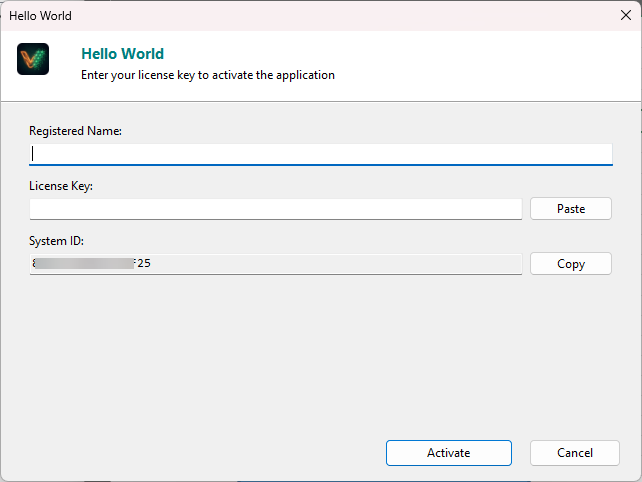
' Display the licensee name in cell A1Sub ShowLicensee() Dim name As String name = VBAPL_GetRegisteredName() If name <> "" Then Sheet1.Range("A1").Value = "Licensed to: " & name End IfEnd Sub' Display the licensee name on the first slideSub ShowLicensee() Dim name As String name = VBAPL_GetRegisteredName() If name <> "" Then ActivePresentation.Slides(1).Shapes("LicenseLabel").TextFrame.TextRange.Text = "Licensed to: " & name End IfEnd SubSystem ID (Hardware Lock): To prevent software piracy, paste the unique Hardware ID provided by your customer here. The resulting key will only function on that specific machine. Your end-users will find their System ID in the activation dialog that appears when they first open your protected application (see screenshot below). They need to copy this ID and send it to you so you can generate a hardware-locked key.
VBA Padlock Studio supports two distinct cryptographic formats for your keys. Choose the one that matches your distribution strategy:
Short Keys (HMAC)
35 Characters. Lightweight and easy for users to type. Ideal for standard activation, expiration dates, and basic hardware locking.
Long Keys (ECC)
160+ Characters. Ed25519 digital signatures for strong cryptographic security. Required for advanced features like Max Execution Counts and Nag Screens.
Define the boundaries of your customer’s access using these powerful limiters:
Activation Settings
Configure the master lock. View Reference →
Hardware ID
Identify specific computers. View Reference →
Key Generation Guide
Step-by-step tutorial for generating and distributing keys. Read the guide →