What's Inside?
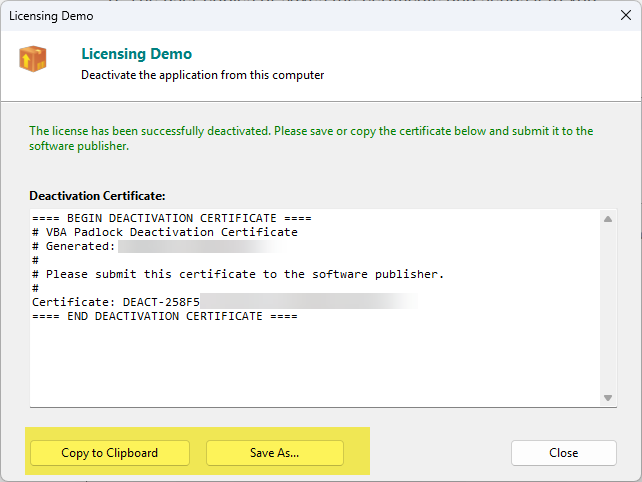
The certificate is a signed block of text containing the deactivated key, the old Hardware ID, and a secure timestamp to prevent reuse.
Provide your users with the flexibility they expect. When they upgrade their hardware or switch machines, the Deactivation System allows them to securely release their license and move it to a new computer without your constant intervention.
VBA Padlock supports two ways to handle license transfers.
The most seamless experience. The application contacts your server to release the activation slot instantly.
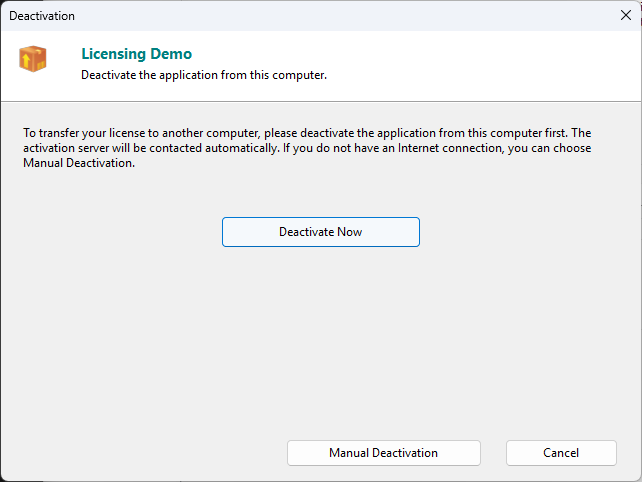
Reliable fallback for users working in offline or restricted environments.
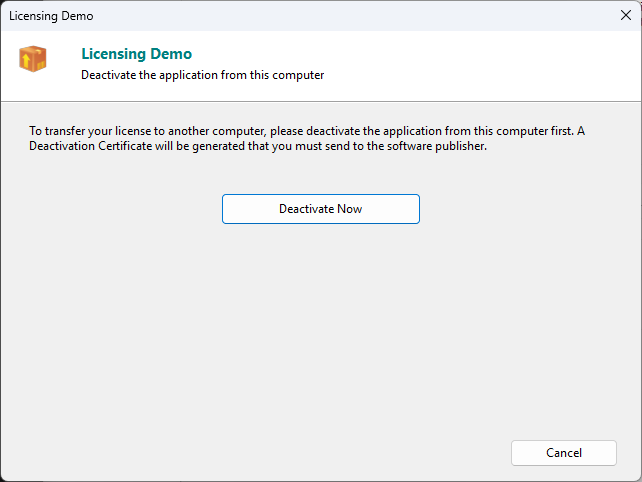
Think of the Deactivation Certificate as a digital “receipt” that proves the user has actually deleted the license from their computer.
What's Inside?
The certificate is a signed block of text containing the deactivated key, the old Hardware ID, and a secure timestamp to prevent reuse.
How to Verify?
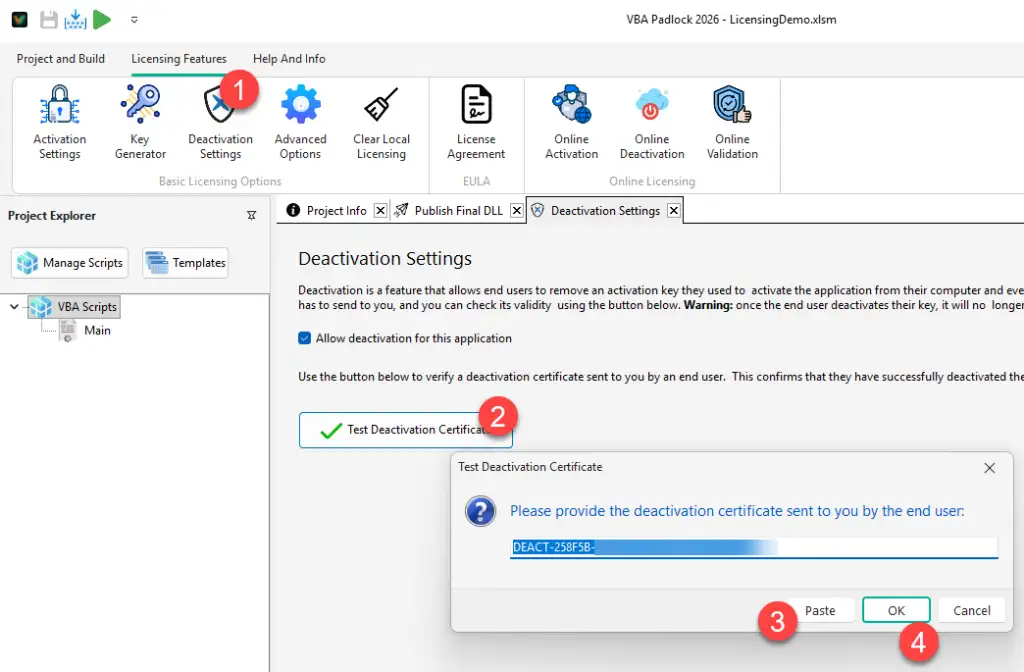
In VBA Padlock Studio, use the Test Certificate tool to verify the validity of a certificate received from a user before issuing a replacement.
You can create a custom “Transfer License” button in your Excel/Word ribbon that invokes the built-in deactivation dialog.
VBA Bridge Command
Public Sub DeactivateMyLicense()    Dim result As Long    ' This shows the combined Online/Manual dialog    result = VBAPL_ShowDeactivation()
If result = 0 Then MsgBox "Deactivation successful! You can now activate on another computer." Else MsgBox "Process cancelled or failed." End IfEnd SubA standard license transfer typically follows these steps:
Deactivation Settings
Enable deactivation and test your certificates. View reference →
Online Deactivation
Configure automated, server-side deactivation URLs. Configure online mode →
Hardware Locking
Understand the “Machine ID” that licenses are tied to. Learn more →