Skip to content

VBA Padlock Studio

VBA Padlock includes a dedicated development environment — VBA Padlock Studio — for managing your projects, writing protected scripts, configuring licensing, and compiling your VBA code into protected DLLs.

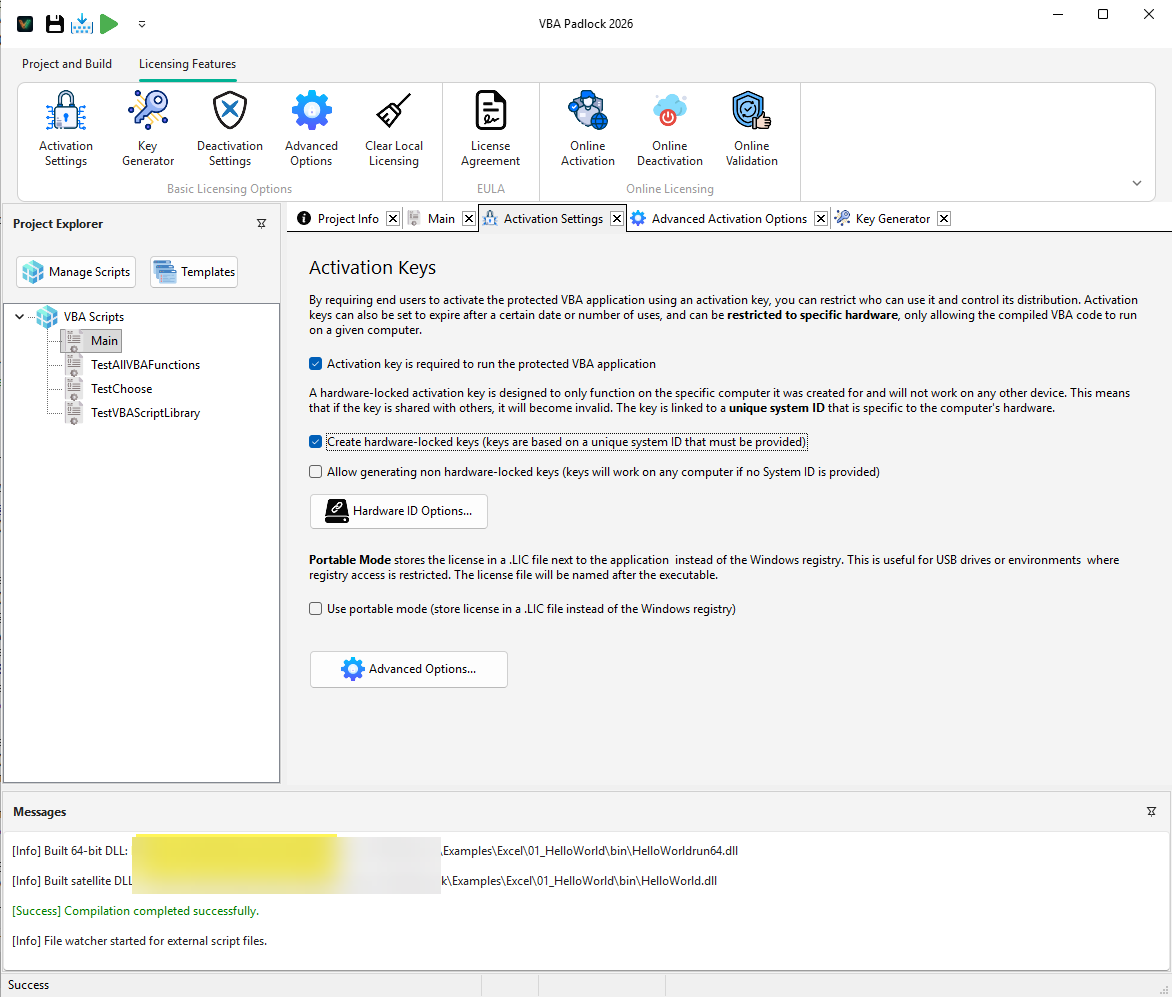
The Studio uses a modern ribbon interface designed to follow the natural workflow of protecting your application.

VBA Padlock Studio - Project and Build Tab

The primary tab for development where you manage your source code and build your protected project.

  • Open Office File: Load your Excel, Word, or PowerPoint file to start.
  • Project Info: Define your DLL metadata (name, version) and unique Security Code.
  • Script Templates: Access a library of pre-built code patterns.
  • Compile (F5): Transform your VBA script into an encrypted, compiled DLL.
  • Test Runner (Ctrl+F6): Test your compiled functions instantly without opening Excel.
  • VBA Bridge & Wrapper: Tools to automate the connection between Office and your DLL.
  • Publish & Distribution: Finalize your build and prepare files for delivery.
  • Advanced Tools: Password-protect your VBA project or create a full installer.

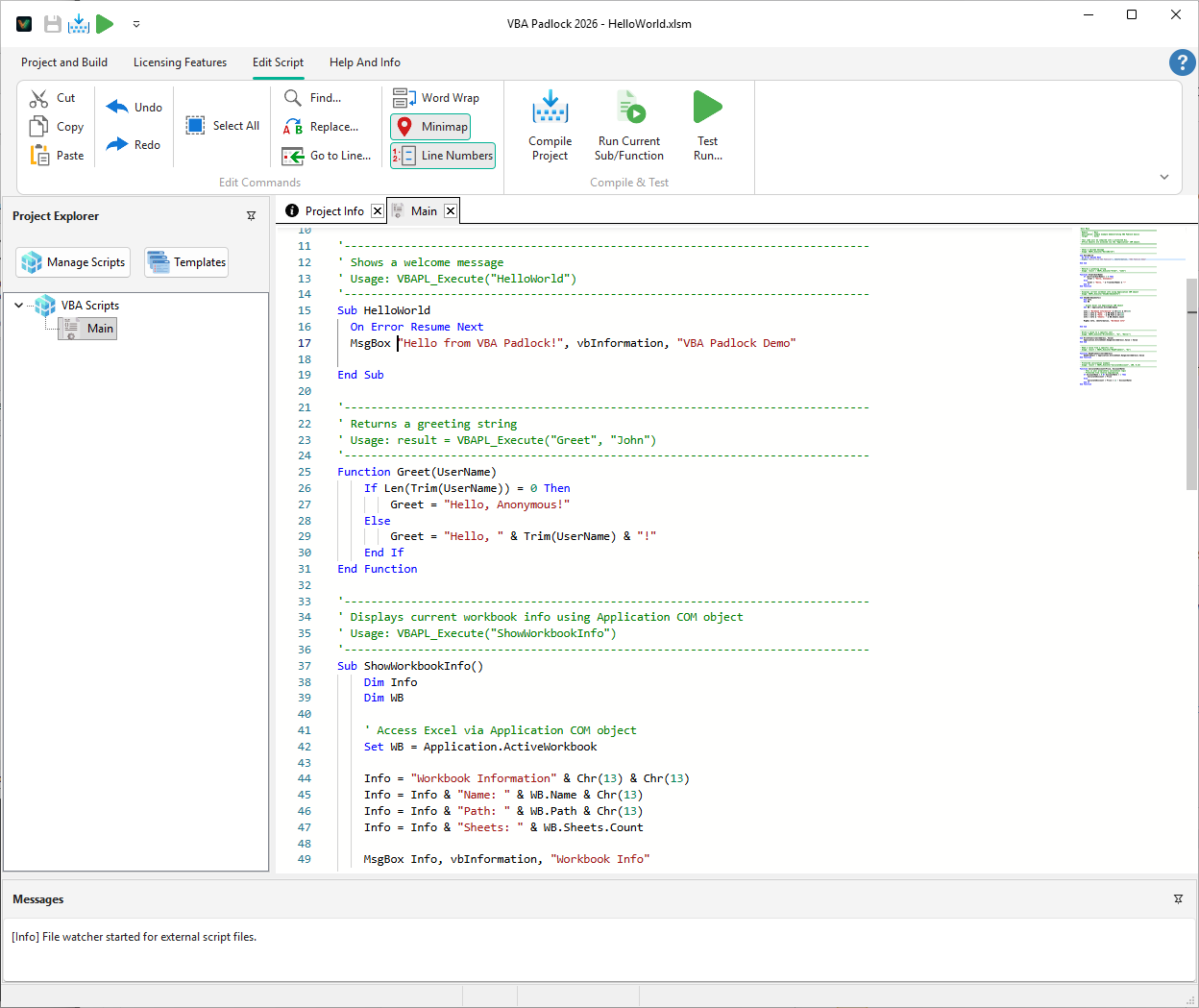
VBA Padlock Studio features a built-in editor specifically optimized for writing compiled VBA logic.

VBA Padlock Code Editor

  • VBA-Compatible Syntax: Full highlighting for keywords, strings, and comments.
  • Modular Design: Organize your code into multiple .bas modules (handled as tabs).
  • Secure by Default: Your code never leaves the encrypted environment until it’s compiled into the DLL.
  • Rich Library: Access over 60+ built-in functions directly from your compiled scripts.

When you create a project, VBA Padlock Studio creates a hidden environment alongside your Office file to store your source code and settings.

Workspace Layout

MyWorkbook.xlsm ← Your Office file
MyWorkbook.vbapadlock/ ← Secure Project Folder
├── project.xml ← Project settings (XML)
├── Main.bas ← Your protected VBA logic
├── Helpers.bas ← Additional script modules
└── locale_en-US.json ← Custom UI localized text

ShortcutAction
F5Compile Project
Ctrl+F6Launch Test Runner
Ctrl + SSave Current Project
Ctrl + NCreate New Module
Ctrl + OOpen Office File

For CI/CD pipelines and automated builds, you can run the Studio headlessly:

Terminal window
VBAPadlock.exe "C:\Path\To\MyFile.xlsm" --compile --silent --log:build.log
SwitchDescription
--compileBuild the project immediately.
--silentRun without a GUI (headless mode).
--publishBuild for production (disables HotLoading debugging).
--logOutput build results to a specific file.

Compatibility

Check which VBA features are supported in compiled code. Learn more →