Key Generation
Learn about bulk generation and license management. Read the guide →
You have compiled your VBA code into a protected DLL. Now it’s time to turn it into a commercial product or a controlled corporate tool. This guide walks you through setting up a complete licensing system, from basic activation to advanced hardware locking.
Time needed: 15-20 minutes
Whether you want to offer a 30-day trial or require a unique key for every PC, VBA Padlock gives you the tools to enforce your licensing terms without writing complex security code in VBA.
The first step is to tell VBA Padlock that your application requires a license key to run.
Open your project in VBA Padlock.
Navigate to Licensing Features → Activation Settings.
Check Activation key is required.
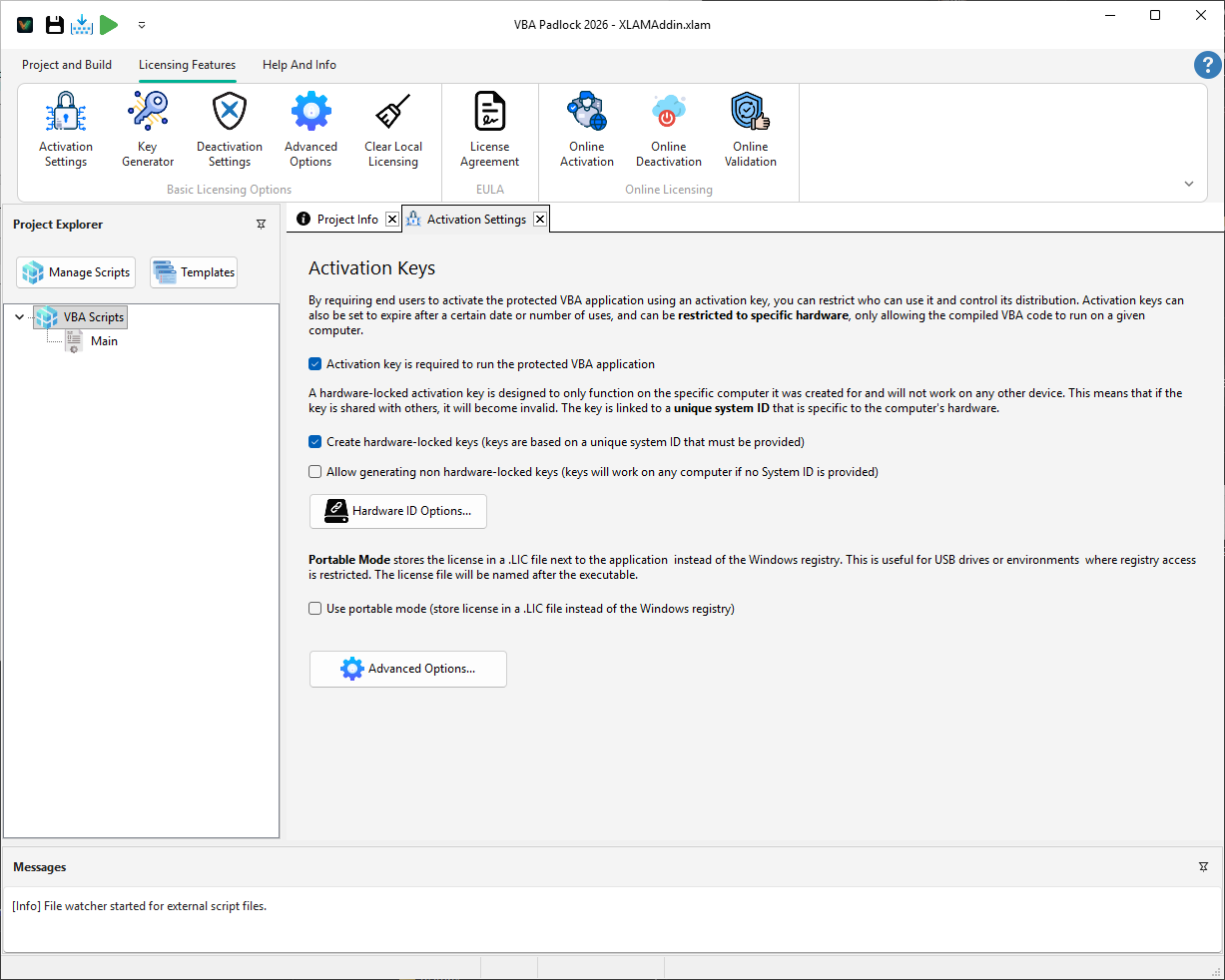
Choose your License Storage:
HKEY_CURRENT_USER. Best for standard Windows installations.How should the user see the license check? You can offer a trial period or force activation immediately.
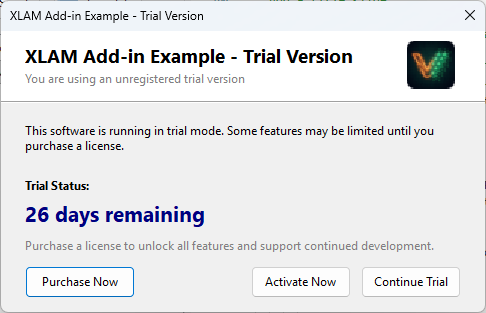
Users can evaluate your tool before entering a full license key.
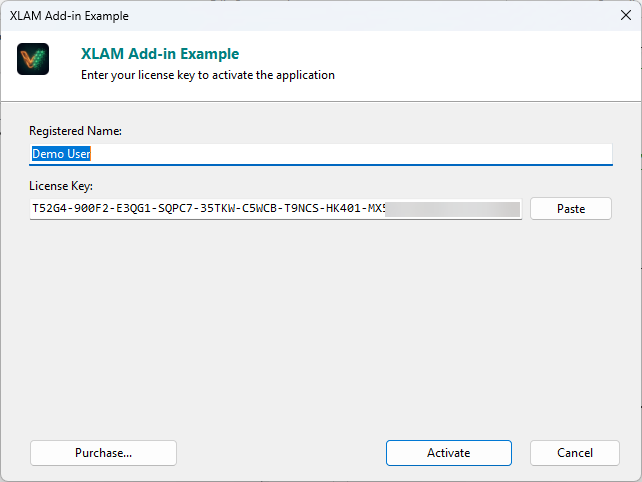
The application will not run at all without a valid key.
To prevent users from sharing a single key across multiple computers, you can tie each license to the physical hardware.
In Licensing Features, go to Hardware ID Options.
Select the hardware components to monitor (CPU, Disk Serial, MAC Address).
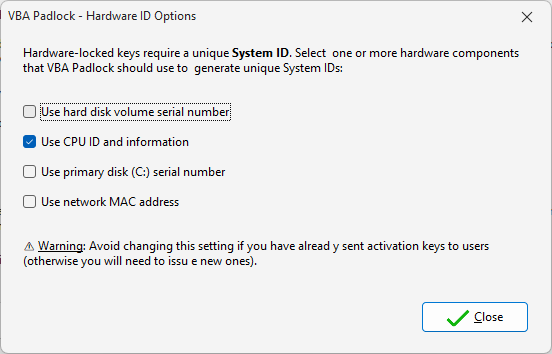
When enabled, the user’s activation dialog will display a unique System ID. They must send you this ID so you can generate a key that only works on their machine.
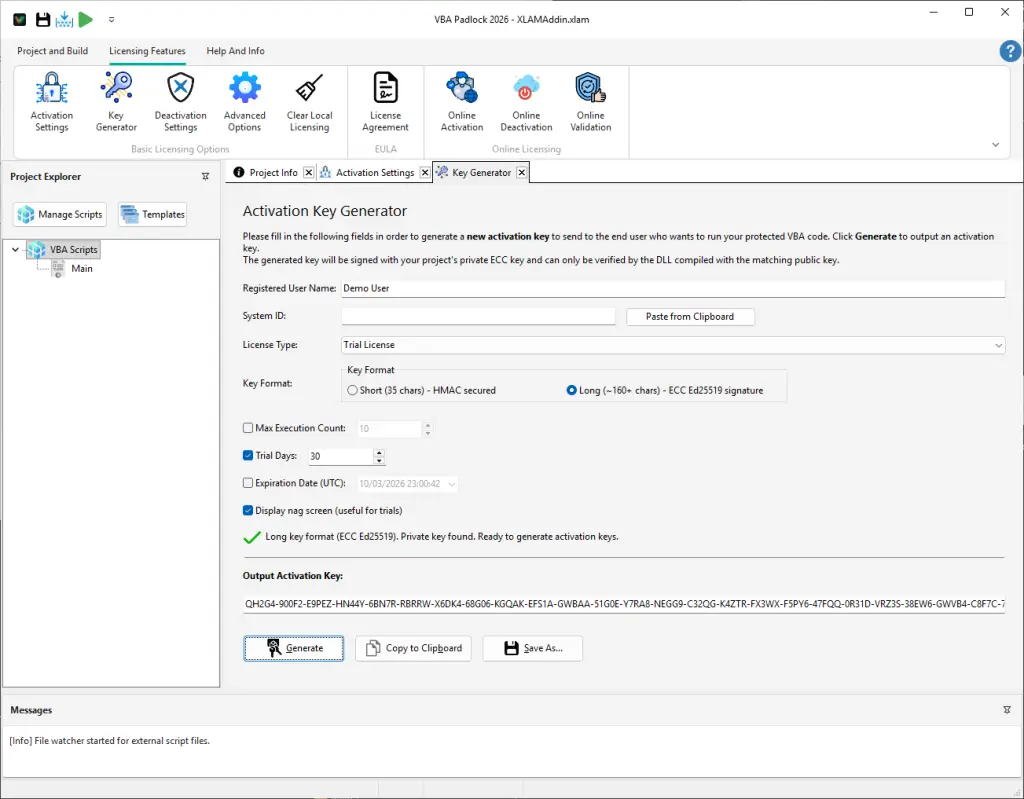
Once your settings are configured and you’ve published your DLL, you can generate keys for your customers.
Go to Licensing Features → Key Generator.
Enter the Registered Name (e.g., “John Doe”).
Pace the user’s System ID if hardware locking is enabled.
Click Generate Key.
For a truly professional experience, you can automate key delivery over the internet.
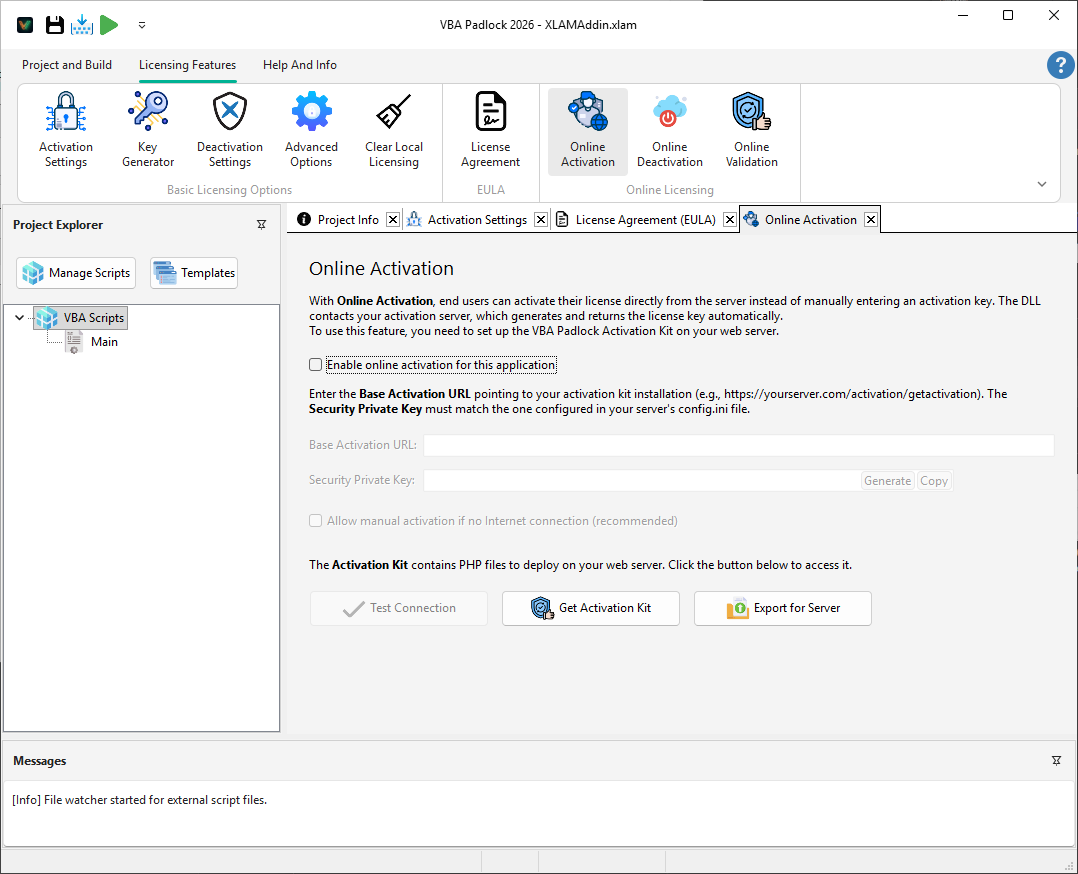
Navigate to Online Activation Settings.
Enable Online activation.
Deploy the VBA Padlock Activation Kit (PHP/MySQL) to your web server.
Before sending your protected file to a client, perform these tests:
Key Generation
Learn about bulk generation and license management. Read the guide →
Activation Server
Deploy your own automated licensing server. Read the guide →
Deactivation
Allow users to transfer their license to a new PC. View feature →
Protect Excel
Ready to ship? Build your finalized Excel project. View guide →