VBA Bridge API
View the full function list. View Reference →
The VBA Bridge is the VBAPLBridge module: a specialized piece of VBA code that allows Microsoft Excel, Word, PowerPoint, or Access to securely load and interact with your protected DLL. In the automatic workflow you never have to think about it; it ships inside your workbook from the start and Produce keeps it up to date. The Create VBA Bridge dialog (Protect tab → Advanced group) exists for when you want to inspect, export, or manually inject it.
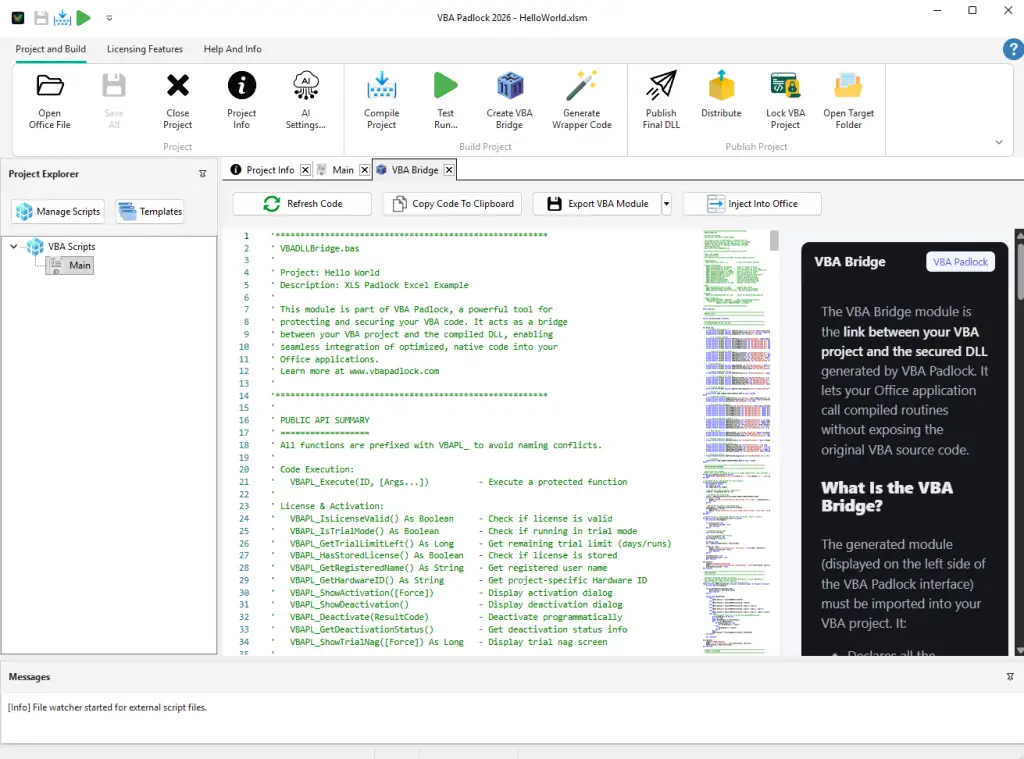
VBAPLBridge module is placed in your Office file, so your project keeps running in plain VBA before you produce, and the generated wrappers have something to call from day one.VBAPadlockBridge, VBADLLBridge) if it finds them.bin\ folder), the bridge reports it once with recovery steps, then returns safe defaults instead of raising an error on every call.The generated module is complex under the hood, but simple to use. It handles all technical plumbing so you can focus on your code:
PtrSafe support for 64-bit Office, ensuring seamless compatibility across Office versions.bin\ subdirectory, preventing “DLL not found” errors.For advanced scenarios, the Create VBA Bridge dialog offers several ways to get the bridge code into a document yourself:
.bas file for manual import into complex projects.VBA Bridge API
View the full function list. View Reference →
Produce & Test Run
The pipeline that injects and refreshes the bridge. View Reference →
Wrapper Generator
Create typed calling functions. View Reference →