Excel Constants
~2,300 xl* and rgb* constants for full Excel automation.
VBA Padlock ships with a set of ready-to-use script libraries: .bas modules containing thousands of Office VBA constants and utility functions that you can add to any project. These libraries let you use named constants like xlCenter, wdAlignParagraphLeft, or msoShapeRectangle directly in your compiled scripts, without needing a type library reference.
Excel Constants
~2,300 xl* and rgb* constants for full Excel automation.
Word Constants
~3,700 wd* constants for document formatting and manipulation.
PowerPoint Constants
~1,500 pp* constants for slides, transitions, and effects.
Access Constants
~1,200 ac* constants for forms, reports, and data operations.
Office Shared
~2,850 mso* constants for shapes, fills, and shared UI elements.
MSForms (UserForms)
~120 fm* constants for UserForm controls: mouse pointers, borders, scrollbars, list styles, and more.
Utility Libraries
Error handling and Financial functions ready for your business logic.
The References button (Protect tab → Project group) is the recommended way to use these libraries:
Open the References dialog
Click References in the Protect tab. The dialog lists every library as a checkbox tree, with a documentation preview for the selected module.
Tick the modules you need
Your host’s constants are pre-selected automatically (e.g. ExcelConstants + OfficeConstants for an Excel project). Tick extras like MSFormsConstants or Financial as needed.
Click OK
Checked modules compile into your DLL on every build; their constants and functions resolve in all your modules, no per-module directive required.
See the References dialog reference for details.
References Directive and Templates GalleryProjects created with earlier versions may include library modules directly (via the Templates button) and reference them per module with a References directive at the very top of the file:
References ExcelConstants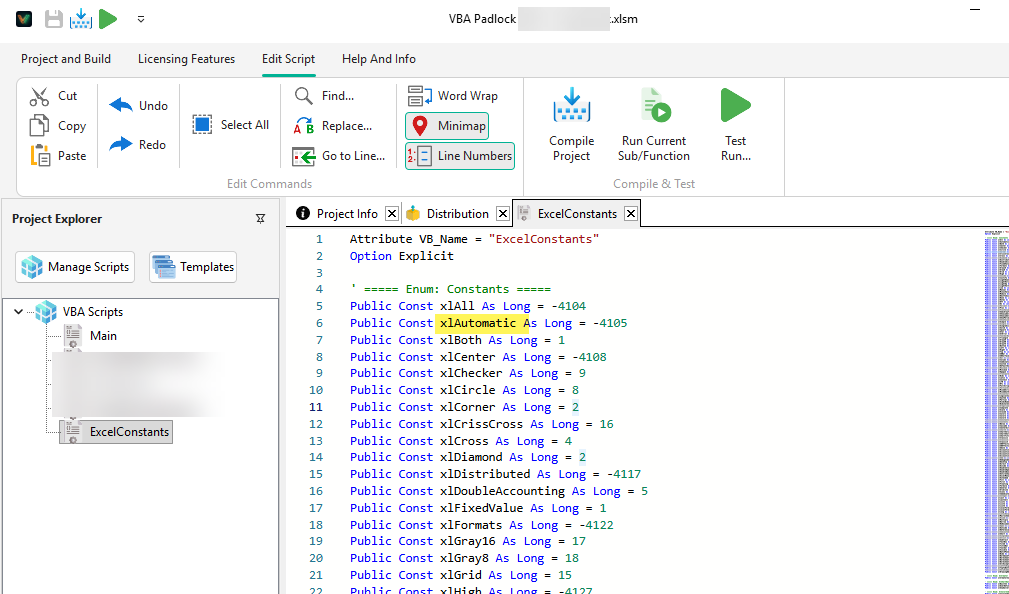
References directive must appear before any Option statement or code (it is also accepted in the declarations region after Attribute headers).References lines.This syntax still compiles, but for new projects prefer the References dialog; it keeps the libraries out of your module list and the selection in one place.
Explore the constants available for each Microsoft Office application.
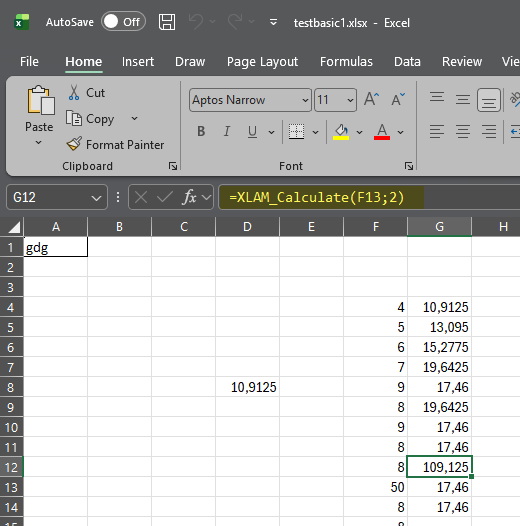
Contains ~2,300 constants for automating Microsoft Excel. Covers the most commonly used xl* enumerations plus 150+ named RGB colors.
Key Categories:
| Category | Examples | Count |
|---|---|---|
| Alignment | xlCenter, xlLeft, xlRight | 20+ |
| Borders | xlContinuous, xlDash, xlDot | 15+ |
| Charts | xlColumnClustered, xlLine, xlPie | 40+ |
| Colors | rgbRed, rgbBlue, rgbCornflowerBlue | 150+ |
| Formats | xlOpenXMLWorkbook, xlCSV, xlAddIn | 40+ |
Example:
References ExcelConstants
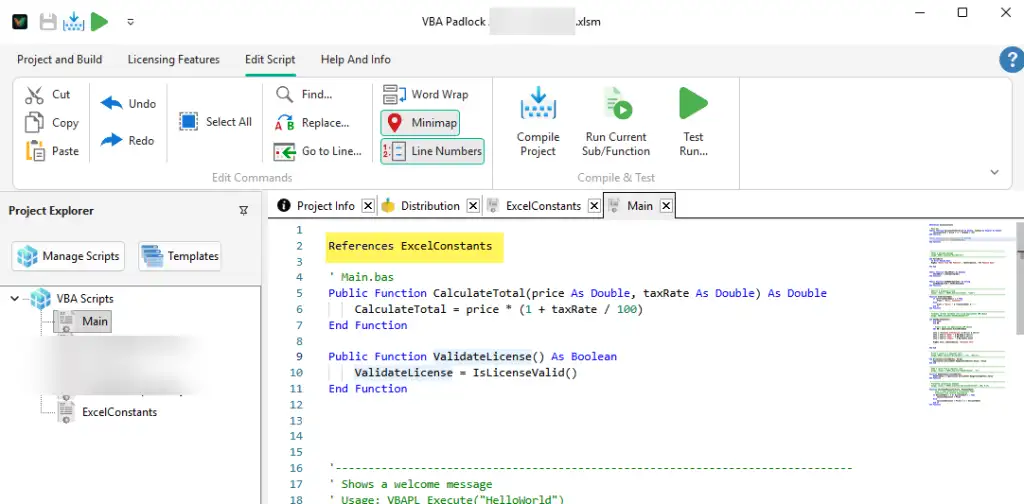
Function FormatReport() Dim WS Set WS = Application.ActiveSheet WS.Range("A1:D1").HorizontalAlignment = xlCenter WS.Range("A1:D10").Borders.LineStyle = xlContinuous WS.Range("A1:D1").Interior.Color = rgbSteelBlue FormatReport = "Done"End FunctionContains ~3,700 constants for automating Microsoft Word. Covers paragraph formatting, document units, find/replace, and more.
Key Categories:
| Category | Examples | Count |
|---|---|---|
| Alignment | wdAlignParagraphLeft, wdAlignParagraphCenter | 9 |
| Units | wdCharacter, wdWord, wdParagraph | 16 |
| Breaks | wdPageBreak, wdSectionBreakNextPage | 11 |
| Formats | wdFormatDocument, wdFormatPDF, wdFormatRTF | 24+ |
| Tables | wdTableFormatSimple1, wdTableFormatElegant | 42+ |
Example:
References WordConstants
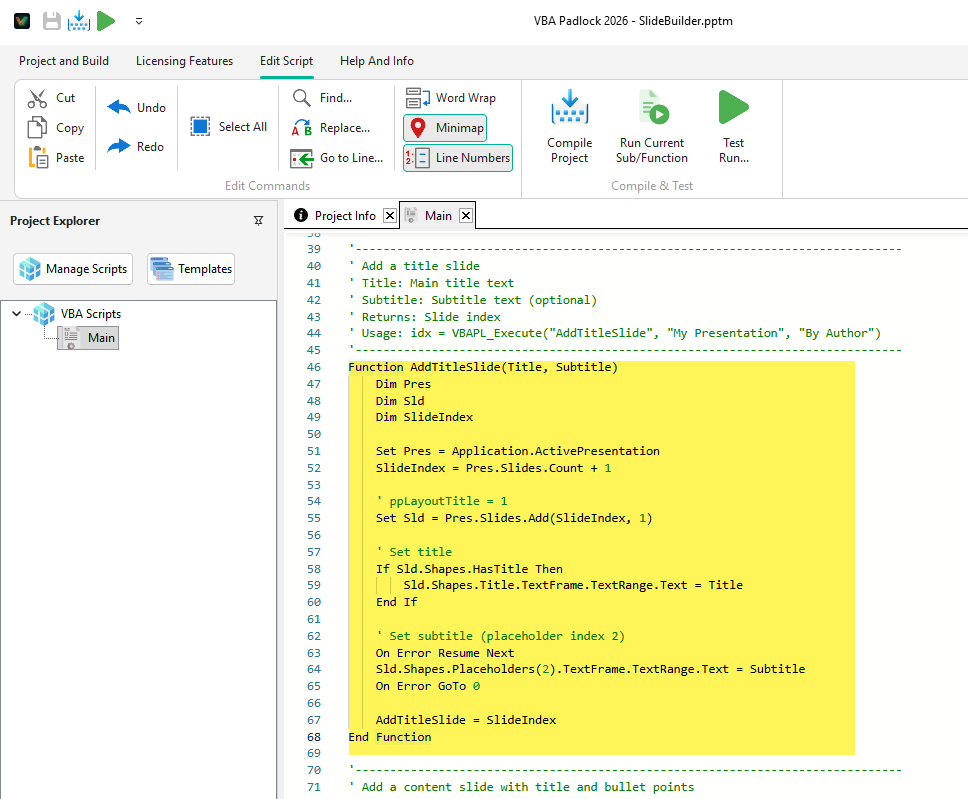
Function FormatDocument() Dim Doc Set Doc = Application.ActiveDocument Doc.Paragraphs(1).Alignment = wdAlignParagraphCenter Doc.Range.InsertBreak wdPageBreak Doc.Tables(1).Borders.OutsideLineStyle = wdLineStyleSingle FormatDocument = "Done"End FunctionContains ~1,500 constants for automating Microsoft PowerPoint. Covers slide layouts, transitions, animation effects, and export formats.
Key Categories:
| Category | Examples | Count |
|---|---|---|
| Layouts | ppLayoutTitle, ppLayoutText, ppLayoutBlank | 36 |
| Effects | ppEffectFade, ppEffectPush, ppEffectWipe | 150+ |
| Animations | msoAnimEffectAppear, msoAnimEffectFly | 150+ |
| Formats | ppSaveAsPresentation, ppSaveAsPDF, ppSaveAsPNG | 40+ |
Example:
References PowerPointConstants
Function BuildSlides() Dim Pres Set Pres = Application.ActivePresentation Dim Slide1 Set Slide1 = Pres.Slides.Add(1, ppLayoutTitle) Slide1.SlideShowTransition.EntryEffect = ppEffectFade BuildSlides = Pres.Slides.CountEnd FunctionContains ~1,200 constants for automating Microsoft Access. Covers form/report operations, control types, and data transfer.
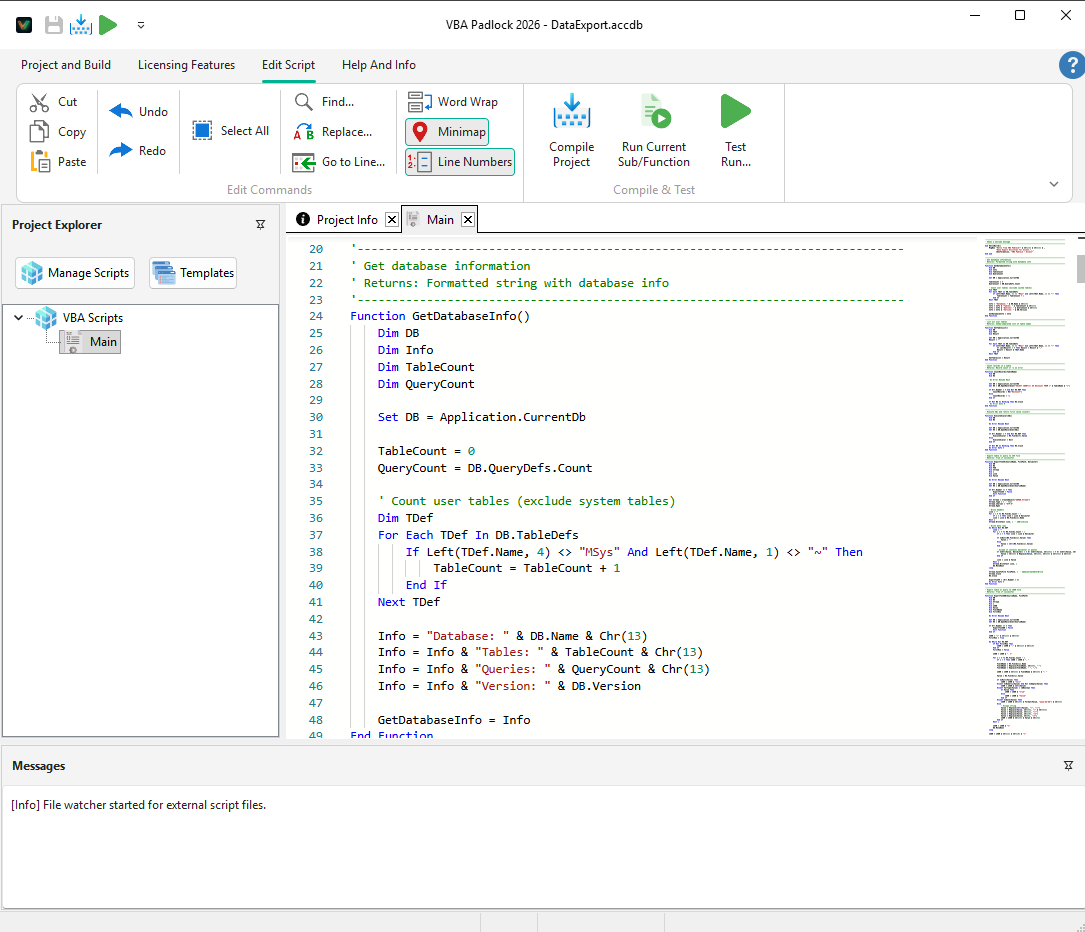
Key Categories:
| Category | Examples | Count |
|---|---|---|
| Objects | acForm, acReport, acQuery, acTable | 12 |
| Controls | acTextBox, acComboBox, acCommandButton | 29 |
| Transfer | acImport, acExport, acLink | 3 |
| Commands | acCmdRunMacro, acCmdSave, acCmdPrint | 50+ |
Example:
References AccessConstants
Function ExportTableData() Application.DoCmd.OpenForm "Customers", acNormal, , , acFormReadOnly Application.DoCmd.TransferSpreadsheet acExport, , "Orders", "C:\Output\Orders.xlsx" ExportTableData = "Exported"End FunctionContains ~2,850 shared MSO (Microsoft Office) constants used across all Office applications. These cover shapes, line styles, fill types, gradients, and more.
Key Categories:
| Category | Examples | Count |
|---|---|---|
| Shapes | msoShapeRectangle, msoShapeOval, msoShapeArrow | 183 |
| Fills | msoFillSolid, msoFillGradient, msoFillPattern | 6 |
| Gradients | msoGradientHorizontal, msoGradientVertical | 7 |
| Textures | msoTexturePapyrus, msoTextureMarble | 25 |
| 3D | msoMaterialMatte, msoMaterialMetal | 35+ |
Example:
References OfficeConstantsReferences ExcelConstants
Function AddShapes() Dim WS Set WS = Application.ActiveSheet Dim Shp Set Shp = WS.Shapes.AddShape(msoShapeRectangle, 50, 50, 200, 100) Shp.Fill.OneColorGradient msoGradientHorizontal, 1, 0.5 Shp.Line.DashStyle = msoLineSolid AddShapes = "Shape added"End FunctionContains ~120 constants from the Microsoft Forms 2.0 Object Library (FM20.DLL), used by UserForms and their controls across all Office applications.
Key Categories:
| Category | Examples | Count |
|---|---|---|
| Mouse pointers | fmMousePointerDefault, fmMousePointerArrow, fmMousePointerHourGlass | 16 |
| Borders & effects | fmBorderStyleNone, fmSpecialEffectSunken, fmSpecialEffectEtched | 7 |
| Text alignment | fmTextAlignLeft, fmTextAlignCenter, fmTextAlignRight | 3 |
| Scroll bars | fmScrollBarsNone, fmScrollBarsVertical, fmScrollBarsBoth | 4 |
| List/Combo | fmMultiSelectSingle, fmMultiSelectExtended, fmStyleDropDownList | 10+ |
| Pictures | fmPictureSizeModeClip, fmPictureSizeModeZoom, fmPictureAlignmentCenter | 20+ |
| Tabs | fmTabStyleTabs, fmTabStyleButtons, fmTabOrientationTop | 7 |
| IME mode | fmIMEModeOn, fmIMEModeOff, fmIMEModeHiragana, fmIMEModeKatakana | 11 |
Example:
References MSFormsConstants
Private Sub CommandButton1_Click()    MousePointer = fmMousePointerHourGlass
    ' ... long operation ...
MousePointer = fmMousePointerDefaultEnd SubHelper modules for common programming tasks.
Provides 6 helper functions for structured error handling inside compiled scripts.
| Function | Signature | Description |
|---|---|---|
GetErrorInfo | GetErrorInfo() | Returns formatted string with Error details |
FormatError | FormatError(Num, [Desc]) | Returns formatted error message |
HasError | HasError() | True if Err.Number <> 0 |
ClearError | ClearError() | Clears the Err object |
Example:
References ErrorHandler
Function SafeDivide(A, B) On Error Resume Next SafeDivide = A / B If HasError() Then SafeDivide = "Error: " & GetErrorInfo() ClearError End IfEnd FunctionProvides 12 financial calculation functions covering loans, investments, and asset depreciation.
Calculations Included:
PMT, PV, FV, NPer, Rate, IPMT, PPMTNPV, IRRSLN, SYD, DDBExample: Loan payment
References Financial
Function CalculateMortgage(LoanAmount, AnnualRate, Years) Dim MonthlyRate, Months MonthlyRate = AnnualRate / 12 Months = Years * 12 CalculateMortgage = Abs(PMT(MonthlyRate, Months, LoanAmount))End FunctionScript Functions
Built-in functions for License, Locale, and more.
VBA Compatibility
Supported VBA features and limitations.
Code Editor
Learn how to use the VBA Padlock code editor.
VBA Bridge
Call compiled functions from your Office VBA code.