Generate Keys
Create licenses for your customers. View Help →
The Activation Settings dialog is the central command center for your protection system. This is where you decide if your application requires a license to run and how that license is secured. For a comprehensive overview of licensing concepts, see the Licensing Feature guide.
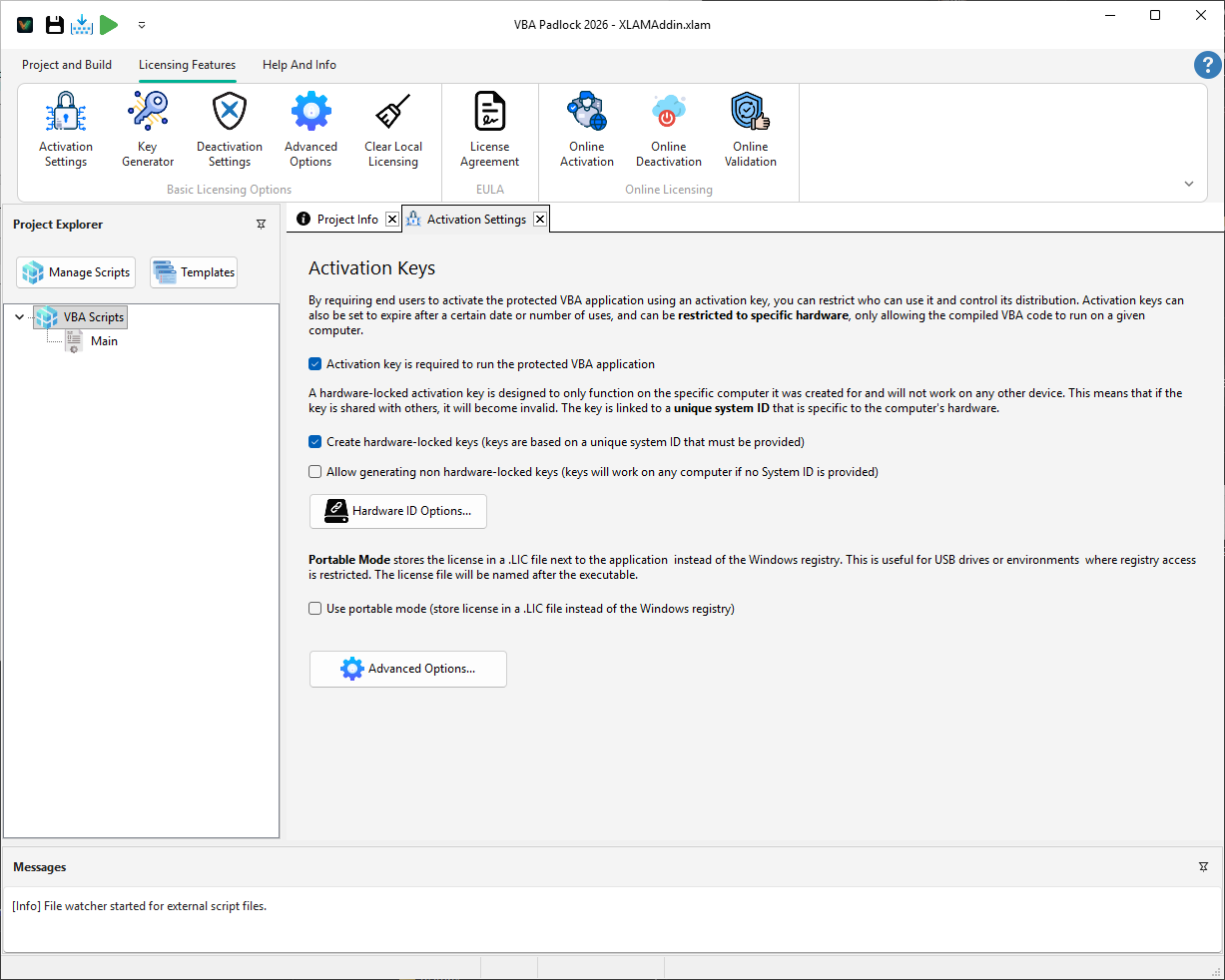
Hardware Locking allows you to bind a license to a specific computer to prevent key sharing. Learn more about this powerful anti-piracy technique in the Hardware Locking Feature guide.
By default, VBA Padlock stores the license in the Windows Registry.
.LIC file located right next to your Office document.This is where you can customize the appearance of your customers’ dialog boxes (logos, colors) or configure your online activation servers.
Generate Keys
Create licenses for your customers. View Help →
Deactivation
Allow license transfers. View Help →