You built an Excel workbook or add-in that saves hours of work. Maybe it’s a financial model, a data analysis tool, a reporting engine, or a custom calculation library. People want it. You want to sell it.
But Excel VBA comes with a fundamental problem: your code is wide open. Anyone who receives the file can open the VBA Editor, read every line, copy it, modify it, and redistribute it. You can’t enforce licenses. You can’t prevent piracy. You can’t even tell how many people are using your tool.
This guide walks you through the complete process of turning a VBA project into a professional, licensed software product - from code protection to distribution.
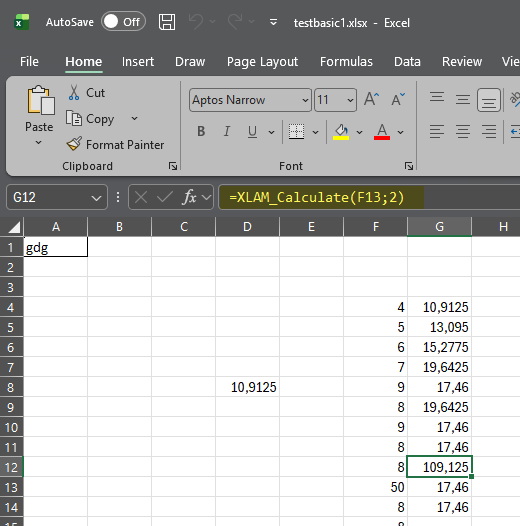
A protected Excel workbook keeps proprietary logic in compiled DLLs while users interact normally with formulas and macros.
The Four Pillars of VBA Commercialization
Selling a VBA application requires four things working together:
- Code protection - prevent users from reading, copying, or modifying your source code
- Licensing - control who can use your software and on how many machines
- Distribution - package your product professionally so users can install and run it easily
- Support infrastructure - manage license keys, handle activations, and process purchases
VBA Padlock handles the first three. The fourth depends on your business setup (your website, payment processor, and customer support workflow).
Step 1: Protect Your Source Code
The first priority is making sure no one can steal your algorithms.
Why Password Protection Won’t Work
If you’re distributing a commercial product, VBA project passwords are not an option. They can be removed in seconds with free tools. Any customer who pays for your workbook could extract your entire codebase and share it - or worse, sell it as their own.
Compile to DLL
VBA Padlock compiles your VBA macros into native Windows DLLs. The source code is transformed into bytecode - a binary format that cannot be decompiled back to readable VBA. Your Excel file contains only a thin VBA Bridge module that loads the DLL and routes function calls.
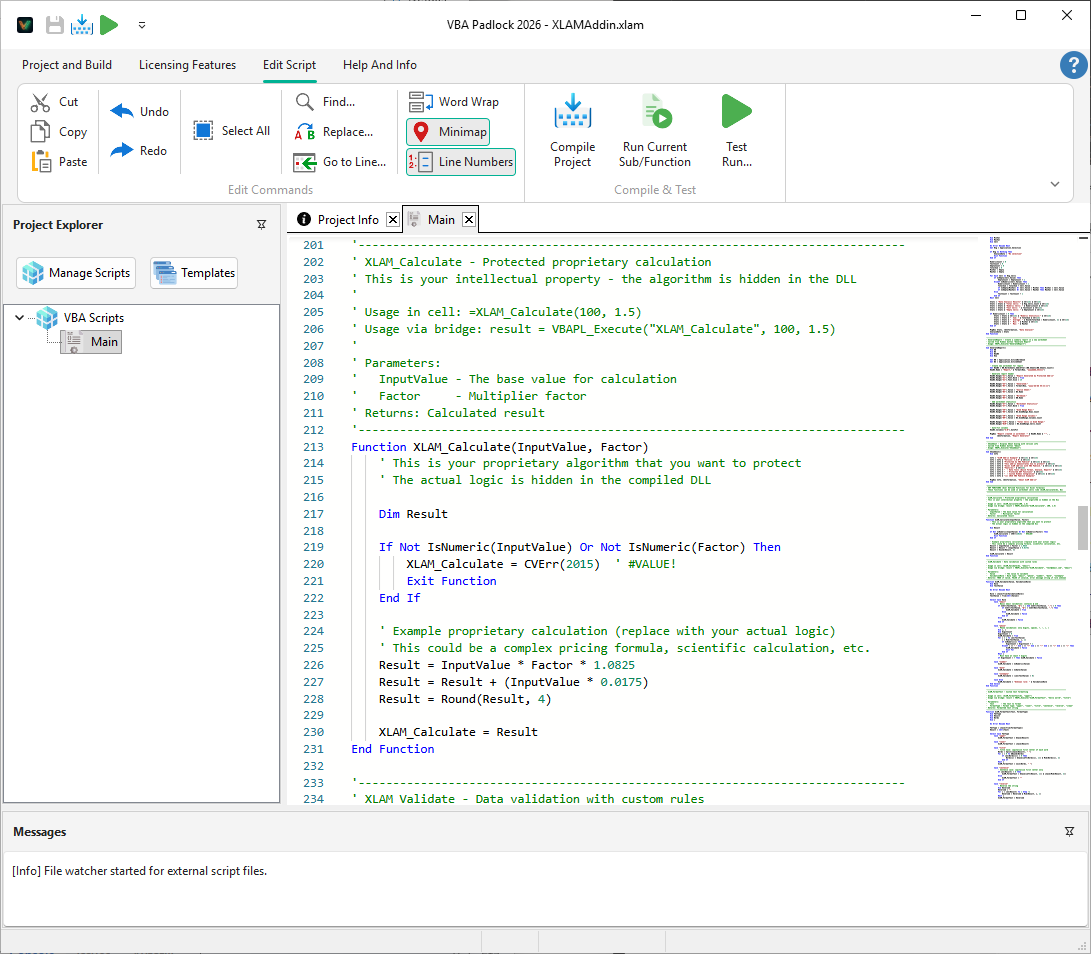
Excel-oriented VBA code can be edited/imported in Studio, then compiled into protected binaries.
Here’s what the process looks like in practice:
Your proprietary code (compiled into the DLL - invisible to users):
Function CalculatePortfolioRisk(Holdings, MarketData)    Dim Weights() As Double    Dim Returns() As Double    Dim CovMatrix() As Double
    ' Parse holdings and market data    ReDim Weights(1 To Holdings.Rows.Count)    ReDim Returns(1 To Holdings.Rows.Count)
    Dim i As Long    For i = 1 To Holdings.Rows.Count        Weights(i) = Holdings.Cells(i, 2).Value        Returns(i) = GetExpectedReturn( _            Holdings.Cells(i, 1).Value, MarketData)    Next i
    ' Build covariance matrix    CovMatrix = BuildCovarianceMatrix( _        Holdings, MarketData)
    ' Calculate portfolio variance    Dim Variance As Double    Variance = MatrixMultiply( _        Weights, CovMatrix, Weights)
    CalculatePortfolioRisk = Sqr(Variance)End Function
What your customers see in the VBA Editor:
Function GetPortfolioRisk() As Double GetPortfolioRisk = VBAPL_Execute( _ "CalculatePortfolioRisk", _ Range("Holdings"), _ Range("MarketData"))End FunctionThe entire risk calculation engine - weights, returns, covariance matrix, variance calculation - is hidden inside the DLL. The customer sees only the wrapper function.
Step 2: Add Licensing
With your code compiled into a DLL, you can embed licensing features directly into the binary. No extra VBA code needed in the Excel file.
License Key Types
VBA Padlock supports several licensing approaches. Choose the one that fits your business model:
Hardware-locked keys - the most common approach for commercial VBA applications. The license key is tied to the user’s machine. They can’t share the key with colleagues because it only works on the specific computer where it was activated.
The activation flow:
- Customer purchases your product and receives a license key
- They open your Excel file - VBA Padlock displays an activation dialog
- The dialog shows their unique Hardware ID
- They enter the license key - VBA Padlock validates it against their Hardware ID
- If valid, the software is activated permanently on that machine
Trial periods - let prospects try your tool before purchasing. Configure the trial length (e.g., 14 days or 30 days) and what happens after it expires. VBA Padlock displays a professional nag screen reminding users to purchase.
Online activation - for automated key management at scale. Keys are validated against your server. You can track activations, enforce seat limits, and revoke keys remotely. VBA Padlock includes a ready-to-deploy PHP activation server kit.
Generating License Keys
VBA Padlock Studio includes a built-in Key Generator. You enter the customer’s Hardware ID, select the license parameters (edition, expiration, features), and click Generate. The key is a compact string that the customer enters in the activation dialog.
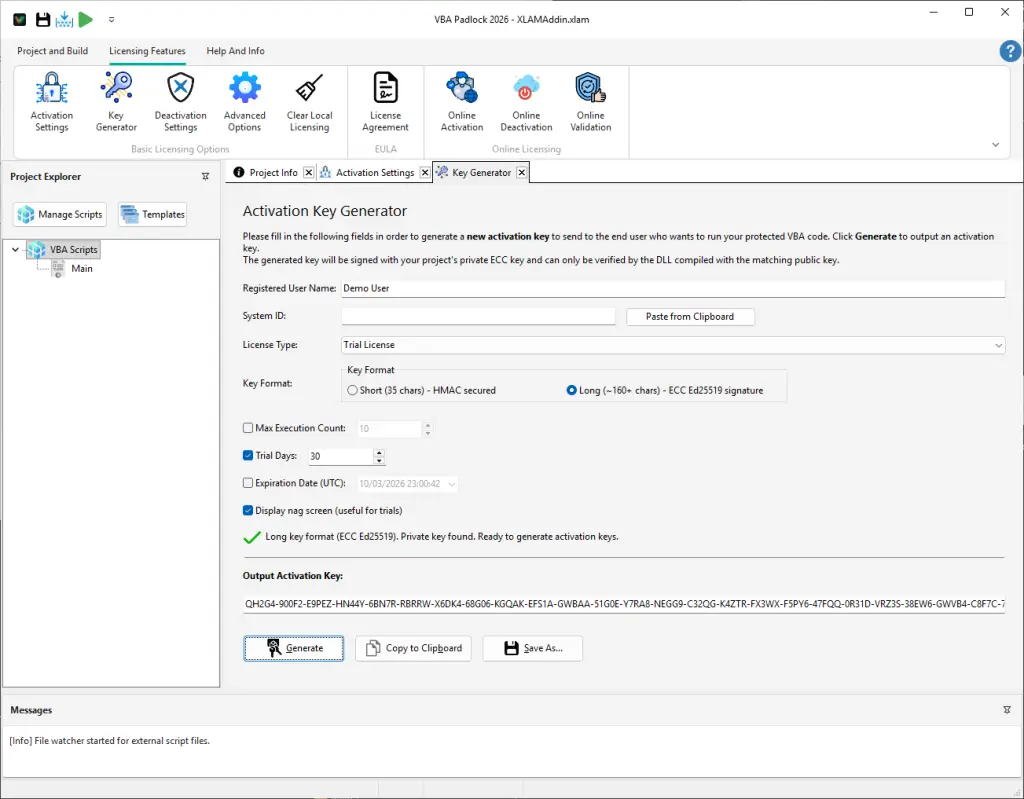
Generate customer keys from hardware IDs and license options in a dedicated UI.
For volume sales, you can batch-generate keys or integrate the key generation API into your e-commerce workflow.
Step 3: Package for Distribution
A professional software product needs professional packaging. VBA Padlock provides two distribution methods:
ZIP Archive
The simplest approach. VBA Padlock’s Distribution dialog creates a ZIP file containing:
- Your protected Excel file (
.xlsmor.xlam) - The
bin/directory with all three DLLs - Optional README and LICENSE files
The folder structure:
MyExcelTool/├── MyExcelTool.xlsm ← Protected workbook└── bin/ ├── MyExcelToolrun32.dll ← 32-bit runtime (signed) ├── MyExcelToolrun64.dll ← 64-bit runtime (signed) └── MyExcelTool.dll ← Compiled bytecodeUsers extract the ZIP to a folder and open the Excel file. The VBA Bridge loads the DLLs automatically from the bin/ subdirectory. No installation wizard, no admin rights, no dependencies.
Installer
For a more polished experience, VBA Padlock can generate a setup program. The installer copies files to the right location, creates Start Menu shortcuts, and handles uninstallation. This is especially useful for .xlam add-ins that need to be registered with Excel.
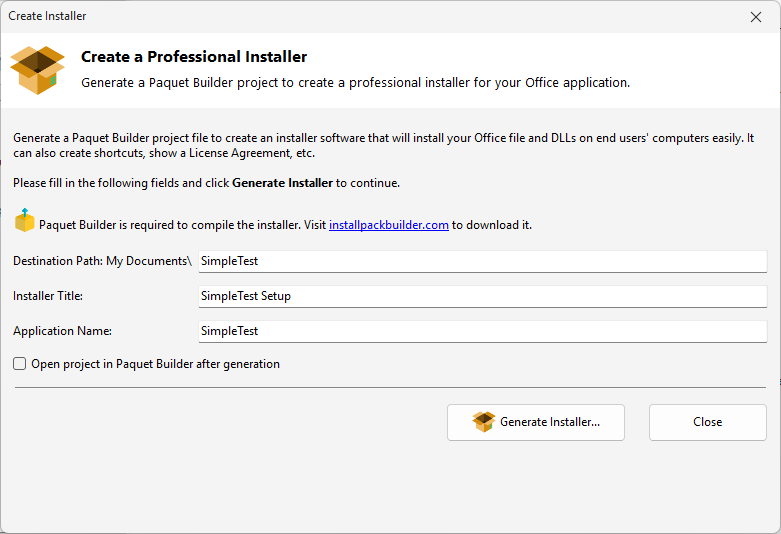
Create an installer package directly from your protected project for easier customer onboarding.
Step 4: Set Up Your Sales Infrastructure
VBA Padlock handles protection, licensing, and packaging. The sales infrastructure is up to you, but here’s a typical setup:
Payment Processing
Use an existing platform to handle purchases:
- Gumroad, Paddle, or LemonSqueezy - easy setup, handles taxes and delivery
- Your own website + Stripe/PayPal - more control, more work
- FastSpring - traditional software distribution platform
License Delivery
After payment, you need to deliver the license key. Two approaches:
Manual delivery - customer emails you their Hardware ID, you generate a key and email it back. Works for low volume.
Automated delivery - integrate VBA Padlock’s online activation with your payment processor. Customer purchases, receives a license key, and activates automatically through your server. The PHP activation kit handles the server side.
Customer Support
Common support scenarios you’ll handle:
- New machine activation - user deactivated on old machine, needs to reactivate on new one
- Hardware changes - a motherboard replacement changes the Hardware ID; you generate a new key
- Trial extension - prospect needs more time to evaluate; you issue an extended trial key
- Multi-seat licensing - enterprise customer needs keys for multiple machines
VBA Padlock’s deactivation feature handles the first scenario automatically. For the others, you use the Key Generator.
Pricing Your VBA Application
Pricing is a business decision, not a technical one - but here are common patterns in the VBA add-in market:
- One-time license: $49-$499 depending on complexity and target audience
- Annual subscription: $29-$199/year, requires online validation
- Freemium/trial: Free trial with limited features, paid upgrade for full access
- Enterprise licensing: Per-seat pricing with volume discounts
The key insight: once your code is protected and licensed, you’re selling software, not a spreadsheet. Price it accordingly.
Real-World Example: Excel Data Analysis Add-in
Let’s walk through a concrete scenario.
You’ve built an Excel add-in (.xlam) that performs advanced data analysis - statistical tests, automated charting, and data cleaning. You want to sell it for $99 per license.
-
Write your VBA code in VBA Padlock Studio. The code uses
Application.ActiveSheet,Range,Charts, andWorksheetFunction- all fully supported. -
Compile and Publish. You now have three signed DLLs in the
bin/folder. -
Configure licensing:
- Hardware-locked activation (1 machine per key)
- 14-day free trial
- EULA displayed on first launch
-
Generate the VBA Bridge and import it into your
.xlamfile. -
Create the distribution ZIP with the
.xlamandbin/folder. -
Set up your website with a product page, screenshots, and a “Buy Now” button linked to your payment processor.
-
Customer purchases → receives a download link and license key → installs the add-in → activates with their key → uses the tool.
-
You manage licenses through the Key Generator or your online activation server.
That’s it. You’re selling a professional Excel add-in with real code protection, hardware-locked licensing, and a clean distribution package.
Common Mistakes to Avoid
Don’t rely on VBA project passwords. They are not protection. A customer who knows how to use a hex editor can extract your entire codebase.
Don’t skip the trial period. Trials increase conversion rates significantly. Let prospects experience the value before asking for payment.
Don’t make activation painful. The Hardware ID + license key flow should be simple. If you can, set up online activation so users don’t need to email you their Hardware ID.
Don’t forget the bin/ folder. The most common support request from VBA Padlock users is “it doesn’t work” - and the cause is almost always a missing bin/ directory. Make your distribution package foolproof.
Don’t underprice your work. If your Excel tool saves someone 10 hours per month, it’s worth far more than $29. Price based on value, not on the effort to build it.
Next Steps
- Protect your code - see the detailed Excel VBA protection page for Excel-specific considerations
- Understand the technology - learn how VBA to DLL compilation transforms your macros into native DLLs
- Plan your licensing strategy - explore the full licensing system including online activation and hardware locking
- Start building - download the free trial and compile your first Excel project in minutes
Ready to turn your VBA skills into revenue? Visit the Sell Your VBA Application page for a complete overview of the protection, licensing, and distribution workflow.