We just published our first video tutorial on YouTube. In 13 minutes, you’ll see the entire VBA Padlock workflow - from a standard Excel file with unprotected macros to a fully compiled, signed, and distributed application where the source code is completely hidden.
If you’ve been reading the documentation and wanted to see the process in action before trying it yourself, this is for you.
Click the thumbnail to watch on YouTube, or visit the Videos page for the full chapter list and related resources.
What the Video Covers
The tutorial walks through a real-world scenario: protecting an Excel workbook’s VBA code by compiling it into a DLL. Here’s what you’ll see step by step:
-
Why VBA passwords don’t work - a quick demonstration of how easily VBA project passwords are bypassed with free tools, and why compilation is the real solution.
-
Opening your Excel file in VBA Padlock Studio - launching the IDE, selecting the target
.xlsmfile, and configuring project info (DLL name, version, security code). -
Writing VBA code in the editor - pasting your macros into VBA Padlock’s code editor with syntax highlighting and IntelliSense support.
-
Compiling to DLL - pressing F5 to compile your code into both 32-bit and 64-bit DLLs, ready for any Office installation.
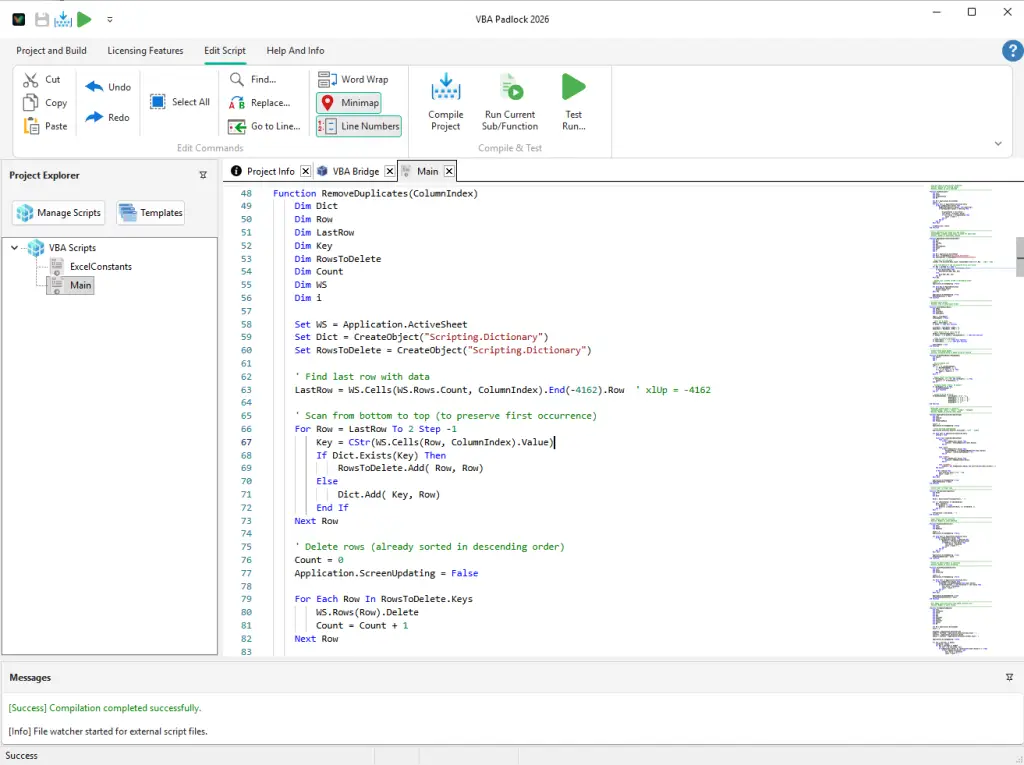
The Message Log confirms successful compilation with signed 32-bit and 64-bit DLLs.
-
Creating the VBA Bridge - generating the auto-generated module that connects your Excel file to the compiled DLL, and importing it into your workbook.
-
Testing compiled functions - running your compiled code directly from VBA Padlock to verify it works before distribution.
-
Generating wrapper code - using the Wrapper Code Generator to automatically create the VBA caller functions that replace your original macros.
-
Publishing the final DLL - building the signed production DLLs with all protections applied.
-
Distributing as a ZIP - packaging the protected Excel file together with the
bin/directory containing all three DLLs into a ready-to-ship archive. -
End-user test - opening the distributed package as an end user, running the macros, and confirming that the VBA project is locked and the source code is nowhere to be found.
Video Chapters
Jump to any section directly on YouTube:
- 0:00 - Why VBA password protection is broken
- 1:45 - Step-by-step tutorial begins
- 1:53 - Opening the source Excel file
- 2:48 - Launching VBA Padlock Studio
- 3:12 - Entering project information
- 3:36 - Pasting VBA code into the compiler
- 3:57 - Compiling the code
- 4:11 - Viewing the generated DLL files
- 4:47 - Creating the VBA Bridge
- 5:44 - What is the VBA Bridge?
- 6:17 - Injecting the bridge into Excel
- 6:49 - Testing the protected code
- 8:06 - Compiling real Excel code (Application object)
- 9:22 - Hot reloading - instant updates
- 9:40 - Generating wrapper code automatically
- 10:33 - Verifying everything works
- 10:57 - Publishing the final DLL
- 11:27 - Distributing as a ZIP archive
- 12:29 - End-user test - the macro works!
- 12:55 - VBA project is locked - code is protected
Who Is This For?
This video is ideal if you’re:
- Evaluating VBA Padlock and want to see the product in action before downloading
- New to VBA Padlock and looking for a visual guide to complement the written documentation
- A VBA developer who wants to understand how DLL compilation works in practice
No prior experience with VBA Padlock is required. The video starts from scratch and covers every step.
Next Steps
- Watch the video on YouTube (13 min)
- Browse all video tutorials on our Videos page
- Protect your Excel workbook - detailed landing page for Excel-specific protection
- Learn about VBA compilation - how the compiler transforms your code
- Download the free trial - try it yourself in minutes